This is a browser extension that lets you send individual browser tabs or all URLs matching certain patterns to your ArchiveBox instance for offline preservation. This has a couple of benefits:
- Own your data: save the web content that matters to you most, protect against link rot
- Protect your data: save offline copies of pages in common, durable formats that will last for generations
- Use your data: collect and tag important bookmarks, full-text search through your browsing history, automatically push captured data into other systems using ArchiveBox's APIs
 Chrome / Brave / Other Chromium-based browsers
 Firefox / Waterfox / Tor Browser / Other Firefox-based browsers
- Microsoft Edge
 Safari / iOS Safari (bundled inside ArchiveBox.app for iOS/macOS)
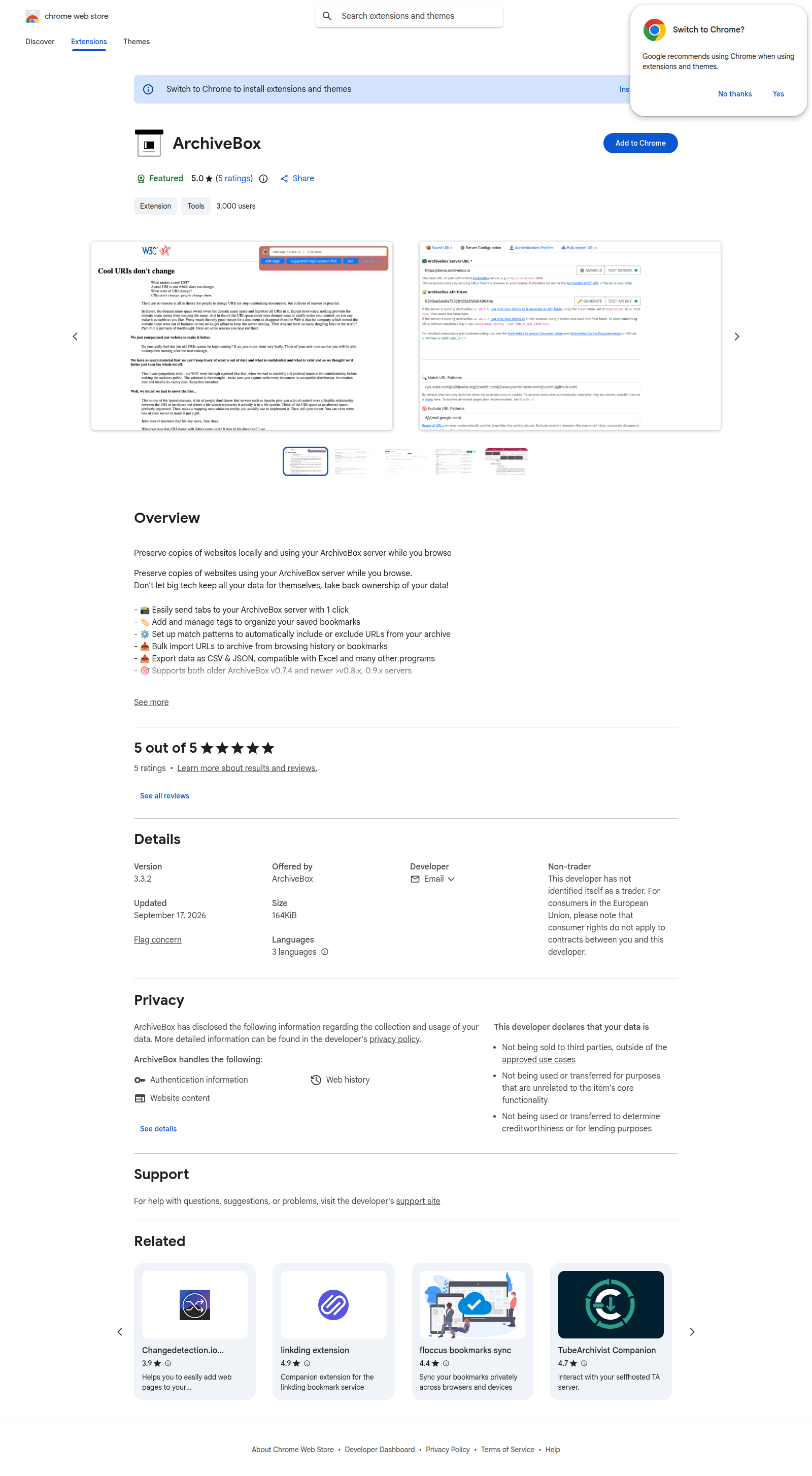
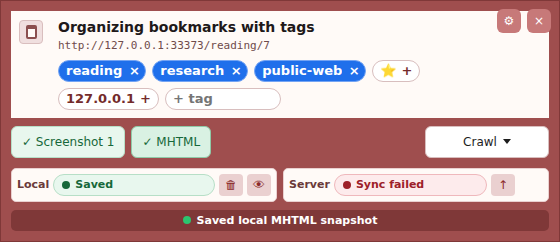
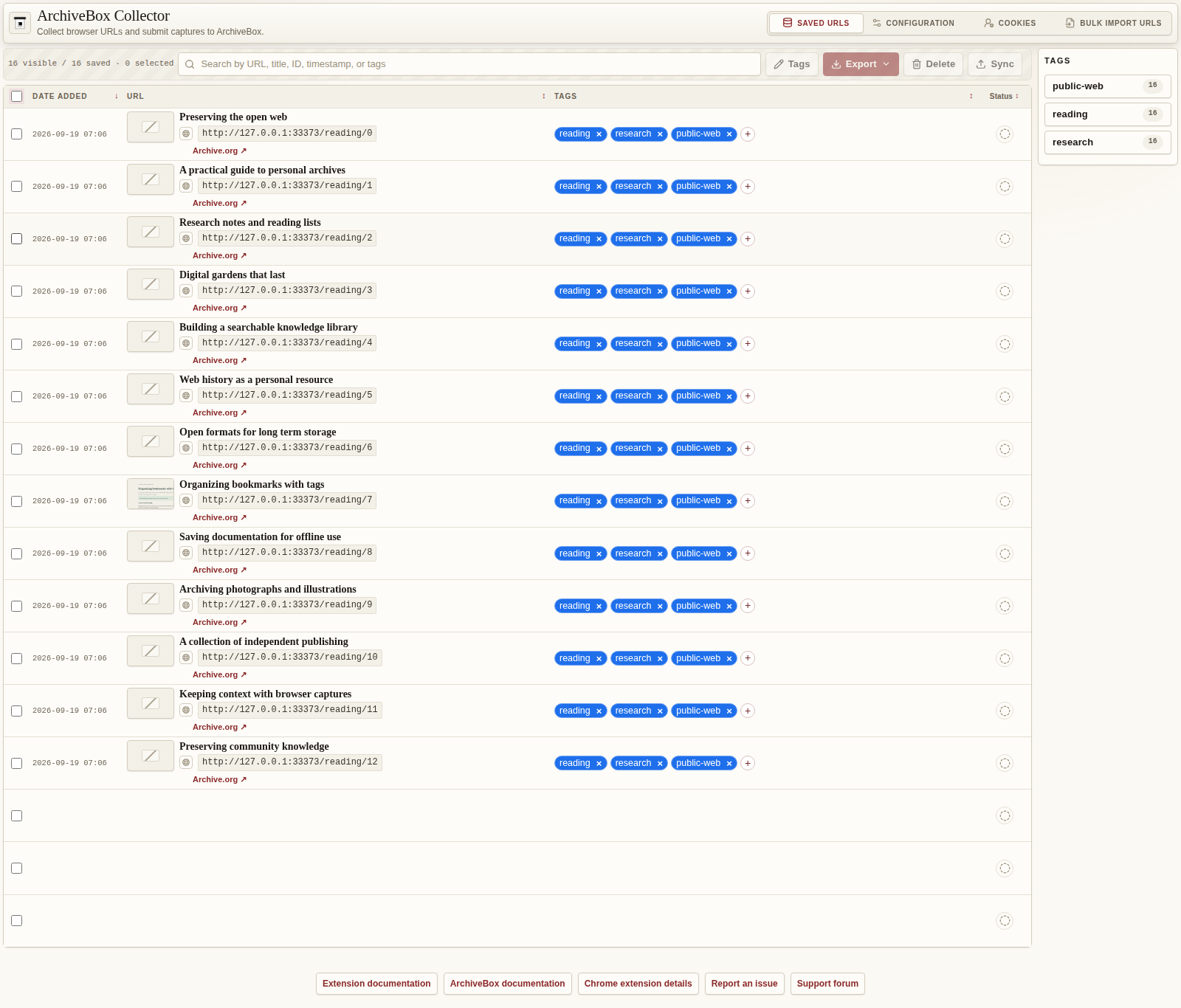
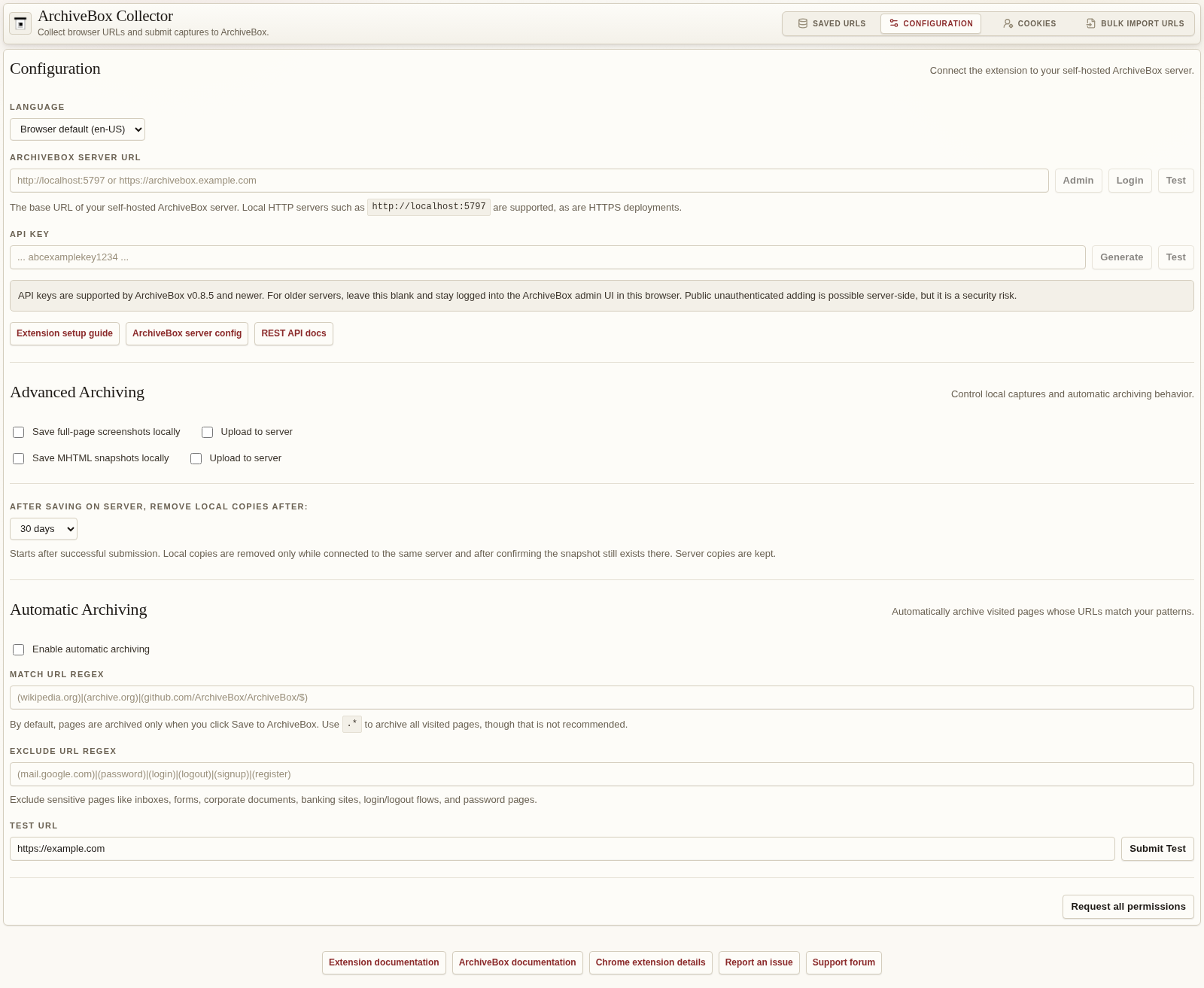
- 📸 Save the current page with the toolbar button, keyboard shortcut, or right-click menu.
- 🏛️ Send URLs to your own ArchiveBox server to preserve websites for later.
- 🏷️ Search, sort, tag, and manage your saved URLs in one place.
- ⚙️ Automatically archive pages that match your chosen URL patterns, with allowlists and denylists.
- 📥 Review and bulk import URLs from browser history or bookmarks on Chrome, Edge, and Firefox.
- 🧭 Import Safari bookmarks, Reading List, and history from Safari's exported ZIP, HTML, or JSON files.
- 🖼️ Keep local screenshots, including full-page captures when permission is granted.
- 📄 Save local MHTML copies of pages. (Chrome and Edge.)
- 📑 Save HTML copies with the optional SingleFile extension installed and connected.
- 📤 Export saved URLs as CSV or JSON, screenshots as PNG, page captures as HTML or MHTML, or everything together in a ZIP.
- ✨ Ask the AI agent to work on the current capture, then follow its OpenCode session.
- 👤 Choose cookies and browser settings to sync to an ArchiveBox authentication profile for sites that require a login.
- 🧹 Choose how long to keep local copies, including cleanup after successful submission to your server.
- 🌐 Use the extension in English, Spanish, or Simplified Chinese.
Safari does not expose bulk bookmarks or history through its WebExtension APIs. Use Apple's browsing data export: on Mac choose File → Export Browsing Data to File; on iPhone/iPad choose Settings → Apps → Safari → Export. Select bookmarks, Reading List, and history as available.
In Extension options → Bulk Import URLs, choose which Safari data to import and the history date range, then select the exported ZIP (or extracted HTML/JSON files). Review the URLs, select the ones to keep, and click Import Selected. Existing saved URLs are marked as duplicates. History retains its original visit time. Files are parsed locally, passwords/payment cards are ignored, and imports enter the same saved URL list used by the other import sources. Use the existing Sync actions to submit them to your server.
Click ✨ beside Crawl and Persona in the popup, describe a task (for example, “save this entire site” or “get the linked papers and their references one hop out”), and press Enter. The form submits independently of capture settings. Once the server accepts the task, it collapses to a checkmark and opens the agent session in a background tab. Click the checkmark to return to that session after reopening the popup. The check means submitted; progress and results appear in the agent session.
This requires a server with the capture-task endpoint, an administrator API key, and the AI agent enabled and configured. Tasks use the server's existing OpenCode sessions, skills, and tools. The server supplies the snapshot UUID, URL, title, crawl, and tags. The form waits until the capture has a server snapshot ID. Errors preserve the task text for retry. Each capture/server pair keeps its submitted session link; continue additional instructions in that session.
The Cookies tab shows one persona at a time, with a compact, searchable list of saved sites and available browser cookies. Existing cookie permissions load the list automatically. Related subdomains are grouped together; expand a site to select or remove individual domains. Favicons use saved/open-tab icons first, then Google's favicon service for public sites. Four familiar sites lead the list; all other sites are alphabetical, with friendly names for 100 common sites.
Select sites and choose Add to [profile]. Sync now uploads immediately and enables Auto-sync for that persona and server. Adding sites then syncs them automatically; the last-synced time changes only after a successful upload. Uncheck Auto-sync to pause updates. Switching persona tabs only changes the editor; Use for archiving changes the profile used for captures.
Viewport screenshots and MHTML captures (Chrome/Edge/Brave) are enabled by default, along with uploading these artifacts to the selected server. Safari and Firefox do not capture MHTML. Full-page capture and upload are separate opt-in settings. Viewport and full-page images are stored independently when both are enabled. Existing explicit capture and upload choices are preserved.
The extension stores capture artifacts in the browser's extension-local OPFS storage:
- Viewport screenshot:
snapshots/YYYYMMDD/example.com/{uuid}/chrome_extension_viewport/screenshot.png - Full-page screenshot:
snapshots/YYYYMMDD/example.com/{uuid}/chrome_extension_screenshot/screenshot.png - MHTML snapshot:
snapshots/YYYYMMDD/example.com/{uuid}/chrome_extension_mhtml/snapshot.mhtml
Older local MHTML files retain their recorded chrome_mhtml paths. Uploads use the separate chrome_extension_mhtml server directory so server-side MHTML captures cannot overwrite browser-captured files.
Local snapshot retention defaults to 30 days after submission and confirmed file uploads. Each capture type can inherit that duration or use a shorter TTL (1 minute, 1 day, 30 days, or 90 days, up to the snapshot limit). Keep snapshots forever and give MHTML/screenshots a short TTL to retain cheap metadata and upload receipts while removing heavy local files.
Snapshot metadata is the parent of the local output rows in Capture & storage. Each output defaults to the metadata retention limit and can use a shorter duration. Turning metadata off also turns off local outputs; enabling an output re-enables metadata. With metadata off, confirmed local copies are removed after upload. Pending files and their metadata are kept until their server copies are verified.
File timers start after confirmed upload of that exact capture version. Cleanup checks the configured server again before deleting local data. Offline, unauthorized, missing, and unverified server copies are preserved, as are files that were never uploaded and their snapshot rows. Server files are never deleted by local retention. Expiration runs on the extension's recurring one-minute alarm, including after browser or worker restart.
To stop automatically collecting and submitting visited URLs, turn off Configuration → Automatic Archiving → Enable automatic archiving. The local screenshot/HTML switches only control capture files. Exclude URL regex blocks automatic background archiving. Toolbar clicks, context-menu saves, keyboard shortcuts, and Sync are explicit overrides. Automatic captures recheck the current enable switch and URL patterns before submitting, so a capture already in progress will stay local if its URL is now excluded or automatic archiving is disabled.
Patterns use JavaScript regular-expression source, without surrounding / delimiters. Both .* and (.*) exclude every URL. Invalid patterns block automatic archiving and show an error in the URL tester.
The Saved URLs list uses the admin's output icon stacks for URL submission, HTML, and screenshots. A check means confirmed delivery to the configured server; a minus means local-only or not captured, and an exclamation marks a failure, mixed delivery, or unverified older upload. Click a stack for separate MHTML, viewport, and full-page screenshot details. Each receipt survives refresh and is tied to the capture version and server ID. Changing upload preferences does not rewrite past delivery. Older receipts are checked against the server; an older file with no capture-version metadata is labeled On server; local version unverified.
- Set up an ArchiveBox server and make sure it's accessible to the machine you're browsing on
- In ArchiveBox 0.9.0, open Admin → API → API Keys → Create an API Key, create a key, and copy it.
- Open Extension options → Configuration, paste the key into API Key, and enter your ArchiveBox server URL (e.g.
https://archivebox.example.com) in Server URL. Save the configuration and test the connection. - ✅ Test it out by right-clicking on any page and selecting
Save to ArchiveBox, or by clicking the extension icon in the menubar.
✨ Originally contributed by TJ Horner (@tjhorner), now maintained by @benmuth and the ArchiveBox team.
If you wish to contribute to (or just build for yourself) this extension, you will need to download and install Node.js and pnpm.
git clone https://github.com/ArchiveBox/archivebox-browser-extension
cd archivebox-browser-extension/

pnpm install
pnpm compile
pnpm build
pnpm build:edge
pnpm build:firefox
pnpm build:safari
For local development:
pnpm dev           # Chrome / Chromium
pnpm dev:edge      # Edge
pnpm dev:firefox   # Firefox
pnpm dev:safari    # Safari WebExtension build
For a production-style local build, load .output/chrome-mv3 into Chrome / Chromium using the Load Unpacked Extension UI, load .output/edge-mv3 into Edge using edge://extensions, load .output/firefox-mv3 into Firefox using about:debugging, or load .output/safari-mv3 in Safari with Settings → Developer → Add Temporary Extension.
pnpm test builds the extension and runs the full browser suite, including the live automatic-archiving, delivery, and retention commands below. API tests start a disposable real ArchiveBox collection using uv and the matching server/plugin source revisions pinned in tests/archivebox-server/pyproject.toml. These revisions include persona platform and browser-storage sync support that has not yet reached PyPI. Set ARCHIVEBOX_TEST_PROJECT to use a local ArchiveBox project instead. No API responses are mocked. Retention tests wait for actual minute-long TTLs and recurring alarms.
To verify per-type retention with real server responses and the real one-minute clock, build the extension and run:
ARCHIVEBOX_TEST_SERVER=http://127.0.0.1:5797 \
ARCHIVEBOX_TEST_KEY_FILE=/path/to/disposable-server-api-key \
node scripts/test-retention-live.mjs
The live test captures unique example.com URLs through the popup, uploads real viewport/full-page screenshots and MHTML, and compares server replay bytes with the original captures. It checks offline/authentication-failure preservation, selective file expiration, receipt persistence after refresh, whole-row expiration, and preservation of unuploaded files. It then restarts the worker and waits for the recurring alarm to expire a new capture without changing settings. It creates test records but never deletes server records; it can run against a hosted server with workers. Set ARCHIVEBOX_TEST_EVIDENCE to save JSON results and a screenshot. UI default/persistence and layout checks run with pnpm exec playwright test tests/retention.test.ts tests/options-responsive.test.ts.
Automatic-archiving controls are tested with pnpm exec playwright test tests/auto-archive.test.ts. To verify that a settings change during a real full-page capture prevents a later upload, use a disposable server without archive workers (and a different hostname from the captured 127.0.0.1 pages):
ARCHIVEBOX_TEST_SERVER=http://localhost:5797 \
ARCHIVEBOX_TEST_KEY_FILE=/path/to/disposable-server-api-key \
node scripts/test-auto-archive-live.mjs
This verifies a successful automatic submission first, then disables archiving or changes URL patterns during capture and checks both outbound requests and the server's snapshot API. It also verifies that subsequent navigation stays blocked and explicit Sync still works. It uses the real options UI, screenshots, storage, and server; no mocked API or clock.
To test the list's individual upload states, run node scripts/test-sync-status-live.mjs with the same disposable server environment variables. It captures real screenshot/MHTML files, verifies server bytes for URL-only and mixed upload choices, then checks a real upload failure, retry, offline refresh, and responsive icon-stack details. Set ARCHIVEBOX_TEST_CAPTURE_URL=https://example.com when testing a hosted server so its workers can also reach the captured URLs. Local capture/layout coverage runs in CI via tests/sync-status.test.ts.
To verify native popup submission and real capture uploads, start a disposable collection with archivebox server (including its normal crawler worker):
ARCHIVEBOX_TEST_SERVER=http://127.0.0.1:5797 \
ARCHIVEBOX_TEST_KEY_FILE=/path/to/disposable-server-api-key \
FULLPAGE=1 FULLPAGE_UPLOAD=1 AGE_CHECK=1 RESUBMIT=1 \
node scripts/test-popup-delivery-live.mjs
This uses the options and native popup UI, verifies the live seconds counter, compares replayed captures with local bytes, and waits two real minutes before checking the submission age and fresh server lookup. RESUBMIT=1 verifies that Re-submit creates a new crawl and snapshot with ONLY_NEW=False, and checks the crawl depth wording. DELETE_AFTER_AGE=1 deletes its own server snapshot through the public API, then verifies that reopening the popup detects the missing capture and submits it again. Omit FULLPAGE_UPLOAD to verify that full-page capture stays local while viewport and MHTML upload. The test creates real example.com submissions and verifies their crawls seal. PERSONA_TEST=1 creates a test persona through the public API and selects it in the popup; combine with AGE_CHECK=1 to verify an older capture is preserved, or REUSE_LOCAL=1 to verify a reused capture is preserved while new local captures still run. Run persona and Re-submit scenarios separately. ARCHIVEBOX_TEST_COLLECTION=/path/to/collection additionally checks the real crawl persona foreign key read-only. OLD_SERVER=1 tests a real older server whose schema lacks snapshot ownership/persona fields; this compatibility fixture can run without workers.
To test AI tasks against a disposable server with OpenCode enabled and the capture-task endpoint installed, build the extension and run:
ARCHIVEBOX_TEST_SERVER=http://localhost:5797 \
ARCHIVEBOX_TEST_KEY_FILE=/path/to/disposable-server-api-key \
node scripts/test-agent-task-live.mjs
This verifies the real form, offline failure/retry, unchanged capture receipt, saved
OpenCode prompt/context, background tab, persistent session link, and mobile layout.
Set ARCHIVEBOX_TEST_EVIDENCE to save screenshots. The task asks for a harmless reply;
acceptance and persistence do not require a model provider to complete it.
- 2026-05 Extension v3.2.1 added ArchiveBox 0.9 persona sync and server host permission fixes
- 2026-05 Extension v3.2.0 migrated to WXT, React, TypeScript, Manifest v3, local screenshot capture, Chrome / Edge MHTML capture, and SingleFile HTML capture
- 2025-03 New Manifest v3 Extension v2.1.3 Released
- 2024-11 Development started on v2 extension with more advanced UI and tagging options
- 2024-01 Extension repo moved from
tjhorner/archivebox-exportertoArchivebox/archivebox-browser-extension - 2021-09 Extension offically supported by ArchiveBox v0.6.2, no longer needed to run
:devbranch - 2021-07 Initial extension published on Chrome and Mozilla web stores
- 2021-06 @tjhorner Created the initial
archivebox-exporterextension
Other browser extensions that also do web archiving which may be a better fit if ArchiveBox doesn't suit your needs.
- ArchiveWeb.page (super high fidelity archiving extension by Webrecorder)
- SingleFile (a great extension for saving pages into a single
.htmlfile, built-in to ArchiveBox already) - Hypothesis (extension focused on annotating, but also supports archiving)
- Memex (another project focused on annotating that supports archiving)
- Save Page WE (a Firefox extension that also saves webpages as a single HTML file)
Other projects that help with ingest URLs into ArchiveBox from various sources.
- https://github.com/layderv/archivefox (user-contributed extension for Firefox)
- https://github.com/Gertje823/ArchiveboxTelegramBot (Telegram Bot to send URLs to ArchiveBox)
- https://github.com/TheCakeIsNaOH/xbs-to-archivebox (Download your bookmarks from xBrowserSync, filter them, and save them into ArchiveBox)
- https://github.com/emschu/archivebox-quick-add (golang utility to add links to ArchiveBox)
- https://github.com/FracturedCode/archivebox-reddit (automatically back up saved Reddit comments, posts, etc. to ArchiveBox)
- https://github.com/dbeley/reddit_export_userdata (older Python utility to archive reddit content to ArchiveBox)
- https://github.com/jess-sol/reddit-exporter (export reddit data to ArchiveBox)
- https://github.com/jonesd/archivebox-pinboard-tranformer (export links from pinboard to ArchiveBox)
- https://github.com/agg23/archivebox-url-forwarder (older WebExtension to forward URLs to archivebox)
MIT License