









Go2TV lets you play video, audio, and image files on your Smart TV or Chromecast device directly from your computer or phone. It works with:
- Smart TVs - Samsung, LG, Sony, and others that support DLNA/UPnP
- Chromecast - Google Chromecast, Chromecast with Google TV, and compatible devices
- Apps - BubbleUPnP, GMediaRender, and other media receiver apps
No need to copy files to a USB drive or set up a media server. Just select your file, pick your device, and play.
- Auto-discovery - Automatically finds Smart TVs and Chromecast devices on your network
- Transcoding - Converts incompatible video formats on-the-fly (requires FFmpeg)
- Subtitles - Supports external SRT/VTT/ASS/SSA files and embedded MKV subtitles
- Seek support - Jump to any position in the video
- Torrent playback - Paste a magnet link or open a .torrent, choose a media file, and cast while downloading. Missing ranges download on demand, including FFmpeg input seeks.
- Playlist playback - Single-file and multi-file playlists with add/remove/reorder/select support
- Loop and auto-play - Loop the current file or auto-play through the playlist
- DLNA Gapless Playback - Supported for DLNA devices
- RTMP Server - Cast live streams from OBS directly to Chromecast (requires FFmpeg)
- Cast Desktop (experimental) - Cast desktop as live stream to Chromecast (requires FFmpeg)
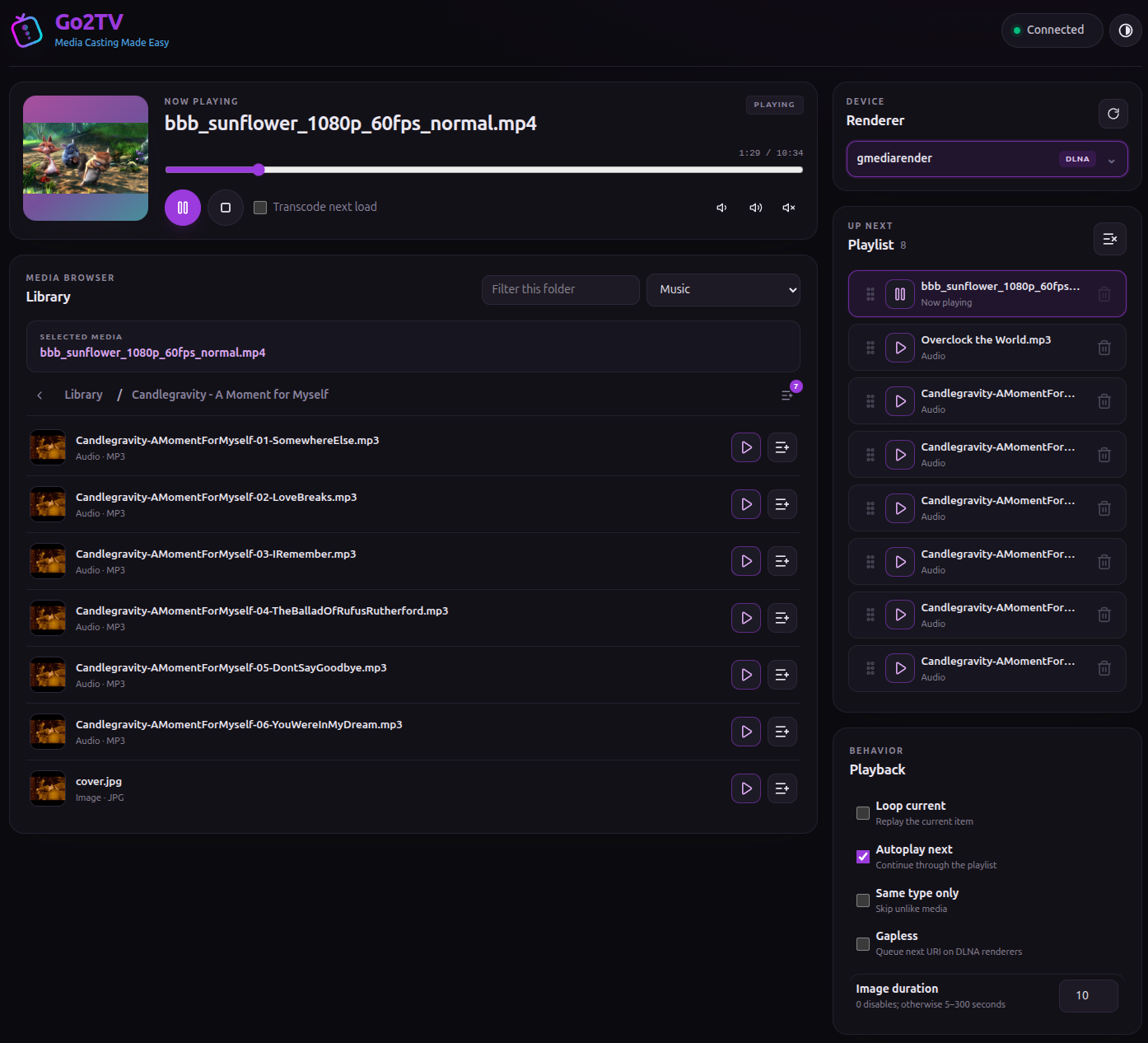
- Web UI (server mode) - Browse media roots and control casting from any browser on your network
- GUI and CLI - Use the graphical interface or command line
GUI Mode


CLI Mode

Web UI (Server Mode)
macOS: Install with Homebrew:
brew install --cask go2tvLinux: Install from Flathub:
flatpak install flathub app.go2tv.go2tvOr download the latest release from the releases page.
- Windows GUI: Download
go2tv_vX.Y.Z_windows_amd64.zip, extract, and rungo2tv.exe - Windows CLI: Download
go2tv_vX.Y.Z_windows_amd64_lite.zip, extract, and rungo2tv-lite.exe - macOS: Download
go2tv_vX.Y.Z_macOS_amd64.zip(Intel) orgo2tv_vX.Y.Z_macOS_arm64.zip(Apple Silicon), extract, and run the app - Linux: Download
go2tv_vX.Y.Z_linux_amd64.zip(or appropriate arch), extract, and rungo2tv - Android: Download
go2tv_vX.Y.Z.apkfor the arm64 build with bundled FFmpeg transcoding
For release downloads, Go2TV is a single executable with no installation required. Just download and run.
For maximum compatibility with all devices and file formats, install FFmpeg. Go2TV will automatically use it when needed.
When transcoding is enabled, Go2TV probes available GPU H.264 encoders first and falls back to libx264 if hardware encoding is unavailable or fails at startup.
- Linux:
sudo apt install ffmpegor equivalent for your distro - macOS:
brew install ffmpeg - Windows: Download from ffmpeg.org and add to PATH
- Flatpak: FFmpeg is bundled automatically
- Android: FFmpeg is bundled in the default APK. It is arm64-only and requires Android 9.0+.
Select a media file (or drag and drop it onto the main window), pick a device from the list, and click Play.
For torrents, click Torrent…, paste a magnet link or open a .torrent, and choose
Use file. Pick a device and cast immediately. Seeks fetch missing pieces first;
FFmpeg transcoding uses the same seekable source. Cancel download stops playback
and removes the temporary cache. Loading another torrent or quitting also removes it.
On Android, the same Torrent… flow supports magnets and provider-backed
.torrent documents. Torrent files can also be shared or opened from other apps.
Downloads continue in the background until Cancel download, even after Stop.
The Playlist window lets you add, remove, reorder, and select files. Dragging files onto the main window replaces the playlist; dragging them onto the Playlist window appends them. Next, Previous, and Auto-Play Next File follow the playlist order.
Run go2tv -h for all options. Common commands:
# List available devices
go2tv -l

# Play a local file
go2tv -v movie.mp4 -t http://192.168.1.100:8060/

# Play with subtitles and transcoding
go2tv -v movie.mkv -s movie.srt -tc -t http://192.168.1.100:8060/

# Play a remote file
go2tv -u https://example.com/movie.mp4 -t http://192.168.1.50:8009

# Cast a torrent before download completes (also supported by go2tv-lite)
go2tv -v movie.torrent -torrent-file 0 -t http://192.168.1.100:8060/
go2tv -u 'magnet:?xt=urn:btih:...' -torrent-file 0 -tc -t http://192.168.1.50:8009

# Chromecast compatibility fallback for external captions (requires -tc)
go2tv -v movie.mkv -s movie.srt -tc -burn-subtitles -t http://192.168.1.50:8009

# Stream from another command
yt-dlp -o - "https://youtu.be/..." | go2tv -t http://192.168.1.50:8009

# Transcode with a custom FFmpeg binary
go2tv -tc -ffmpeg /path/to/ffmpeg -v movie.mkv -t http://192.168.1.50:8009
Omit -torrent-file for torrents containing one media file. For multiple media
files, omitting it lists their indexes. Torrents work in desktop GUI, mobile,
CLI/TUI, and Web UI. Chromecast automatically renders embedded text captions in
MKV/WebM torrents while downloading; external -s captions take precedence.
Use -no-torrent-subtitles to disable automatic torrent captions. These flags
also work with go2tv-lite.
Run Go2TV as a web server to browse selected media folders and control casting from a browser. The Web UI has separate device, playlist, and playback state from the desktop GUI.
Open Torrent… in the library to paste a magnet or upload a .torrent (up to
4 MiB). Choose a media file, click Use file, then Play to cast while it
downloads. Progress and Cancel download are shared across browsers. Cancel
stops torrent playback and removes its queue item and temporary cache. Loading
metadata leaves the current stream intact; choosing another torrent replaces it.
Server shutdown removes torrent caches. FFmpeg transcoding supports input seeks.
Desktop GUI Automatic subtitles prefer a matching sidecar (.srt, .vtt,
.ass, then .ssa). Without a sidecar, DLNA leaves embedded subtitles to the
TV during direct playback; with transcoding, it burns the first supported local
embedded track. Chromecast selects the first supported embedded text track for
receiver captions, or the first supported text or bitmap track for burn-in.
DLNA serves sidecars and explicitly selected embedded text tracks as SRT without
transcoding. Unreadable automatic tracks never block playback.
Automatic torrent subtitles controls embedded torrent text subtitles.
External SRT/VTT/ASS/SSA captions use the Chromecast receiver during direct and
transcoded playback; transcoded seeks shift captions to the new stream start. Enable
Playback → Burn Chromecast Subtitles (Compatibility Fallback) for a compatibility fallback requiring
transcoding, including automatic embedded MKV/WebM torrent captions. Desktop GUI
and mobile offer the same fallback in Settings → Playback. DLNA burns selected
subtitles and automatic embedded torrent text subtitles during transcoding.
Embedded torrent burning renders captions in short windows as playback advances,
so startup does not require the entire track or video. The current caption window
and its timing lookahead still need verified torrent pieces; missing pieces can
delay playback. External subtitles take priority. Embedded torrent captions use
their original ASS/SSA styles, positioning, animation and attached fonts when
burned during transcoding. Local embedded ASS/SSA tracks are also burned directly
from their container, preserving attached fonts. External ASS/SSA files preserve
their styles and can use font files alongside the subtitle file. Receiver WebVTT
captions retain simplified formatting. Local bitmap subtitles (PGS, DVD, DVB,
XSub) require transcoding and are burned into the video; Chromecast also requires
Burn Chromecast Subtitles. Bitmap captions cannot be served as SRT or WebVTT.
FFmpeg must include overlay and scale2ref for bitmap burn-in, and subtitles,
overlay, and scale2ref filters and PNG support for embedded torrent burn-in.
From the GUI, open Settings → Remote Web Session…, add media folders, choose local or LAN access, and start the session.
For headless use, pass -server and at least one -media-root:
go2tv -server -media-root /path/to/MediaUse -ffmpeg /path/to/ffmpeg when FFmpeg is not available on PATH. CLI,
go2tv-lite, and the Web UI verify and use the supplied binary.
The default URL is http://127.0.0.1:9666/. Repeat -media-root to expose multiple
directories:
go2tv -server \
  -media-root /path/to/Movies \
  -media-root /path/to/Music \
  -media-root "/path/to/TV Shows"
For LAN access, set a non-loopback -listen address and allow each browser origin:
go2tv -server \
  -listen 0.0.0.0:9666 \
  -allowed-origin http://192.168.1.20:9666 \
  -media-root /path/to/Media
LAN mode uses HTTP without TLS. Use it only on trusted networks.
Select a Chromecast, enable RTMP Server, and click Play. Use the displayed URL in OBS or other streaming software. Requires FFmpeg.
Select a Chromecast, enable Cast Desktop (experimental), and click Cast. Requires FFmpeg and is not supported on audio-only Chromecast devices.
mp4, avi, mkv, mpeg, mov, webm, m4v, mpv, mp3, flac, wav, jpg, jpeg, png
The CLI accepts any file type.
mcp-beam is a companion MCP server (stdio transport) built on top of Go2TV core packages.
It lets MCP clients discover Chromecast and DLNA/UPnP devices, cast local files or remote URLs, and stop playback. For direct control, use the Go2TV GUI or CLI.
If you're behind a firewall, allow inbound traffic from devices on your local network:
3339-3438/udpfor DLNA/UPnP device discovery3500-4499/tcpfor the local HTTP media server used by DLNA and Chromecast playback
Chromecast receiver
Go2TV uses a custom Chromecast receiver hosted at https://cast-receiver.go2tv.app/. It is not part of this open-source repository and is not currently published. It renders external WebVTT captions and progressive embedded text captions from MKV/WebM torrents, alongside Go2TV branding.
Requirements: Go 1.26
git clone https://github.com/alexballas/go2tv
cd go2tv
make buildmake appimage # Without FFmpeg
make appimage-ffmpeg # With FFmpegRelease AppImages are built on Ubuntu 22.04 (glibc 2.35) for compatibility with
older systems and named go2tv_vX.Y.Z_amd64.AppImage. The lowercase prefix and
underscores match other release artifacts; linux is omitted because AppImages
are Linux-only. Build on Ubuntu 22.04 when distributing local AppImages;
building on a newer system can require a newer glibc.
Standalone Linux amd64 and arm64 releases use the same Ubuntu 22.04 baseline. ARMv6 releases use a pinned Raspberry Pi OS Bookworm image (glibc 2.36), which provides the Wayland and PipeWire headers required by current dependencies. CI tests Go packages on both Ubuntu 22.04 and the latest Ubuntu runner.
For the FFmpeg build, APPIMAGE_FFMPEG_MODE supports auto (default), system,
download, or none. Downloaded builds pin a month-end FFmpeg 8.1.2 build for
Pascal/NVENC compatibility. BtbN retains month-end builds for two years; daily
builds expire after 14 releases. Override binary paths with APPIMAGE_FFMPEG_BIN
and APPIMAGE_FFPROBE_BIN, or override the archive with APPIMAGE_FFMPEG_URL and
APPIMAGE_FFMPEG_SHA256.
Release AppImages include update information for AppImageUpdate and a matching
.AppImage.zsync asset. Local builds omit update information by default. To
generate the pair locally, install zsyncmake and set APPIMAGE_UPDATE_INFO
and APPIMAGE_OUT (using the final release filename) when running make.
make androidmake android builds the arm64 APK and bundles Android ffmpeg/ffprobe executables as native libraries. Set ANDROID_NDK_HOME and ANDROID_HOME.
To compile the bundled FFmpeg tools from an official source checkout:
git clone --branch n8.1.1 --depth 1 https://github.com/FFmpeg/FFmpeg.git ffmpeg-source
git clone --branch stable --depth 1 https://code.videolan.org/videolan/x264.git x264-source
make android-source \
  ANDROID_FFMPEG_SOURCE_DIR="$PWD/ffmpeg-source" \
  ANDROID_X264_SOURCE_DIR="$PWD/x264-source"
android-source performs no dependency downloads. It builds x264, then a GPL
FFmpeg arm64 configuration with both MediaCodec and libx264 using the NDK. It
verifies required transcoding features and 16 KB ELF alignment before packaging.
The source-build workflow pins FFmpeg, x264, and the official Android NDK. GPL
notices and exact source revisions are embedded in the APK and uploaded with the
corresponding source archives.
Set ANDROID_SIGN=false to produce a zip-aligned unsigned APK for downstream
packagers such as F-Droid. Signed builds remain the default.
Build the image:
docker build --force-rm -t go2tv .Run the container (Linux with X11):
xhost +local:docker
docker run -it --network host -e DISPLAY=$DISPLAY -v /tmp/.X11-unix:/tmp/.X11-unix go2tv go2tvAlexandros Ballas alex@ballas.org
MIT
Artifacts that bundle FFmpeg inherit the bundled FFmpeg build's license obligations. Source-built Android APKs and default bundled AppImages use GPL FFmpeg builds. The legacy Android binary-download target uses an LGPL FFmpeg build.