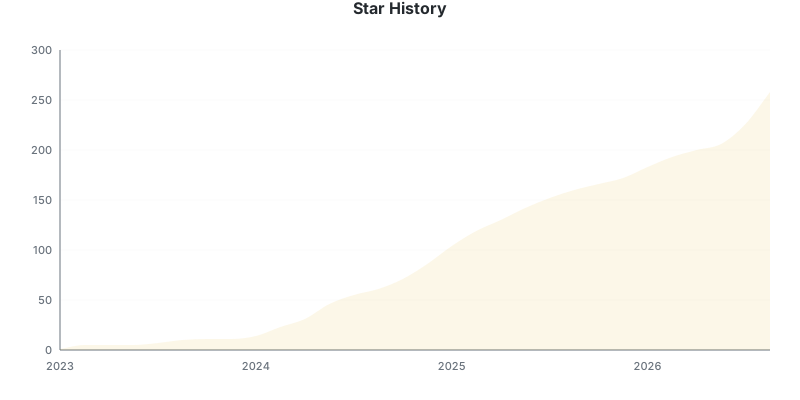
⭐ If you like this project, star it on GitHub!
Website • Features • Installation • Desktop app • Command line • Supported sites • Troubleshooting
Manga Downloader downloads manga chapters from MangaDex and more than 100 other sites and packs them into CBZ files, ready to read on your e-reader or in your favorite comic app. It comes as a desktop app for Windows, macOS and Linux, and as a command line tool for scripts, servers and Docker.

Desktop app
- Paste a URL and it loads: the series, its chapters and the languages and scanlation groups it offers appear on their own.
- Pick what you need: type a range such as
1-10,12, Shift+click a span, or select all, then choose the language and scanlation group the series has. - Live progress: every chapter shows up as it's fetched and packed, with a summary and an Open folder button when it's done.
- Native folder picker, and a window that follows your system's light or dark theme.
Desktop app and command line
- 115 supported sites, from big aggregators to small scanlation groups.
- Chapter ranges such as
1,3,5-10, so you download only what's missing. - E-reader friendly output: AVIF and WebP pages are converted to JPEG, so they don't show up blank on Kobo, KOReader or Calibre.
- Flexible output: one CBZ per chapter, one per volume (
--volumes), a single bundled CBZ (--bundle), or plain image folders (--format raw), named from a template. - Language and scanlation group filters for sites that host several versions of a chapter, and skipping pages such as credits or ads.
- Concurrent downloads with retries.
- JavaScript and Cloudflare-protected sites are handled by driving a local Chromium browser, which clicks "Verify you are human" checkboxes for you.
Command line
- A single binary with no runtime, no dependencies and no config file, plus Docker images.
The easiest way is the website, which picks the right download for
your system. Or download the manga-downloader-gui asset for your system from
the releases page:
-
Windows:
manga-downloader-gui-<tag>-windows-amd64.zip, or-windows-arm64.zipfor ARM devices such as Snapdragon laptops. Unzip it and runmanga-downloader-gui.exe. -
macOS:
manga-downloader-gui-<tag>-darwin-universal.zip. Unzip it and moveManga Downloader.appwherever you like. Or install it with Homebrew, which also putsmanga-downloader-guion yourPATH:brew install --cask elboletaire/tap/manga-downloader
The cask installs the command line tool too, so
manga-downloader uiworks. Mind the--cask: without it, Homebrew installs only the command line tool, which shares the name. -
Linux:
manga-downloader-gui-<tag>-linux-amd64.tar.gz, or-linux-arm64.tar.gz. Extract it and runmanga-downloader-gui. It needs WebKitGTK 4.1 (libwebkit2gtk-4.1-0on Debian and Ubuntu), which most desktops already have.
Note
macOS doesn't sign the app, so Gatekeeper blocks its first launch. Allow it under System Settings → Privacy & Security with Open Anyway. You only need to do this once.
Windows needs the Microsoft Edge WebView2 runtime. Windows 11 and current Windows 10 already have it; without it, the app offers to download and install it on first launch. If SmartScreen shows "Windows protected your PC", click More info → Run anyway: the file is only flagged because it isn't signed.
If the desktop app sits next to the command line tool or is on your PATH (the
Homebrew cask puts it there), manga-downloader ui opens it. On Windows,
double-clicking manga-downloader.exe does the same.
When a newer release is out, a yellow ! next to the version in the status bar links to it.

On macOS and Linux, install the command line tool from Homebrew:
brew install elboletaire/tap/manga-downloaderHomebrew doesn't quarantine the command line tool, so there's no Gatekeeper
step on macOS. brew upgrade manga-downloader updates it.
This installs only the command line tool. On macOS, the
desktop app is a cask with the same name, which installs both
and gets manga-downloader ui working:
brew install --cask elboletaire/tap/manga-downloaderDownload the archive for your system from the releases page, extract it and run the binary:
./manga-downloader --helpBuilds are published for Linux, macOS and Windows on amd64 and arm64 (Windows
arm64 included), plus 32-bit builds for Linux and Windows. The Windows 32-bit
build is named windows-32bit-legacy.
To run it from any folder, move the binary to a folder in your PATH, such as
/usr/local/bin on Linux and macOS.
Windows: step-by-step setup
[!IMPORTANT] Manga Downloader is a command line tool, so run it from a terminal, as shown below. Double-clicking
manga-downloader.exeopens the desktop app when the app is next to it or on yourPATH. Without it, the window only shows the help and waits for Enter.
-
Open PowerShell: press the Start button, type
PowerShelland press Enter. -
Paste this line and press Enter:
irm https://raw.githubusercontent.com/elboletaire/manga-downloader/master/install.ps1 | iex
-
Close the terminal and open a new one. Then run it from any folder:
manga-downloader https://mangadex.org/title/a1c7c817-4e59-43b7-9365-09675a149a6f/one-piece 1-10
The install script downloads the latest release to
%LOCALAPPDATA%\Programs\manga-downloader and adds that folder to your PATH.
It doesn't need administrator rights. Run the same line again to update, and
delete that folder to uninstall.
[!TIP] Files are saved in the folder the terminal is in. To download straight into a folder, open it in File Explorer, type
cmdin the address bar and press Enter. A terminal opens there, ready to use.
Prefer not to run a script?
Download the windows-amd64 zip from the releases page (or
windows-arm64 if you have an ARM device, such as a Snapdragon laptop), extract
it, and copy manga-downloader.exe to C:\Windows\System32. Windows asks for
administrator permission. After that, manga-downloader works in any terminal.
[!WARNING] This works, but it isn't the best place for the program: it needs administrator rights and mixes it with Windows' own files. To update or uninstall it, you have to go back to that folder and replace or delete the file yourself.
If Windows SmartScreen shows "Windows protected your PC", the binary is only flagged because it isn't signed. Click More info → Run anyway.
macOS: allowing an unsigned binary
The binary isn't signed, so Gatekeeper blocks it the first time you run it:
- Run
./manga-downloaderonce and dismiss the warning. - Open System Settings → Privacy & Security, scroll down to Security, and click Open Anyway next to the manga-downloader message.
- Run
./manga-downloaderagain and confirm the dialog.
You only need to do this once.
docker run --rm -it -v "$PWD:/downloads" elboletaire/manga-downloader [url] [chapters]Files are written to the mounted /downloads folder. They're owned by
USER_ID/GROUP_ID, which both default to 1000. If your user has a
different ID, pass it with
-e USER_ID=$(id -u) -e GROUP_ID=$(id -g).
:latest and :browser follow releases. The current development version is
:master (and :master-browser).
The default image has no browser. For sites marked with *, use the :browser
image, which ships Chromium and a virtual display:
docker run --rm -it -v "$PWD:/downloads" elboletaire/manga-downloader:browser [url] [chapters]Showing the browser window on your own display
The :browser image passes Cloudflare challenges on its own. If a challenge
needs a real person, forward the window to your Linux desktop. You may need to
run xhost +local: first:
docker run --rm -it -e DISPLAY=$DISPLAY -v /tmp/.X11-unix:/tmp/.X11-unix \
-v "$PWD:/downloads" elboletaire/manga-downloader:browser --browser-visible [url] [chapters]go install github.com/elboletaire/manga-downloader@latestTip
Binaries installed this way don't report a version number, because the version is only added to release builds.
Open the app and follow these steps:
-
Paste the series' URL into the box at the top. The app loads the series on its own, without a button.
-
Pick chapters in the list. Type a range such as
1-10,12and press Add range, Shift+click to select a span, or use All and None. The arrow keys and Space work too. -
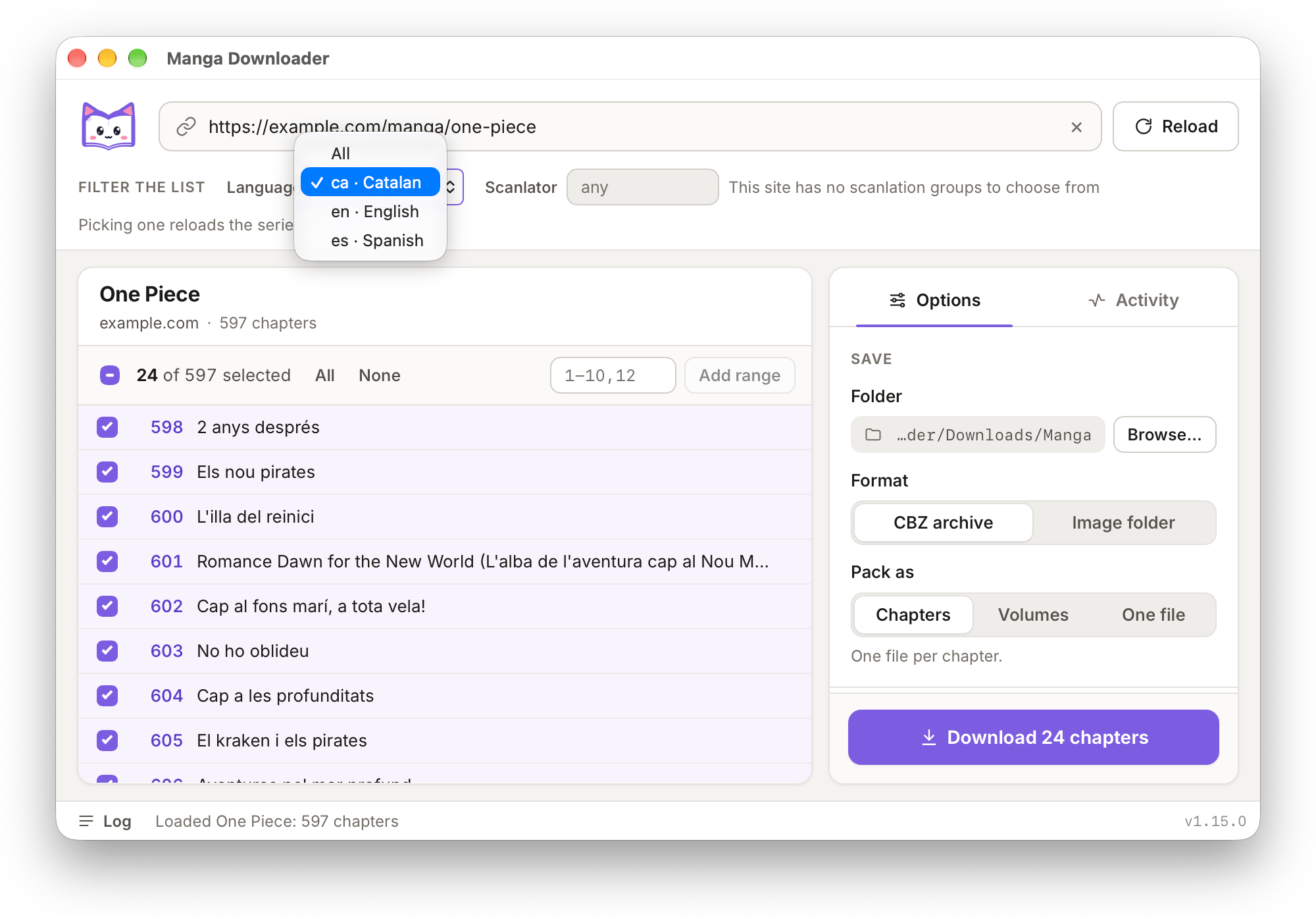
Choose a language and a scanlation group when the site offers them. The selectors only appear for series that list them, and picking one reloads the chapter list. Sites that support it also offer All.
-
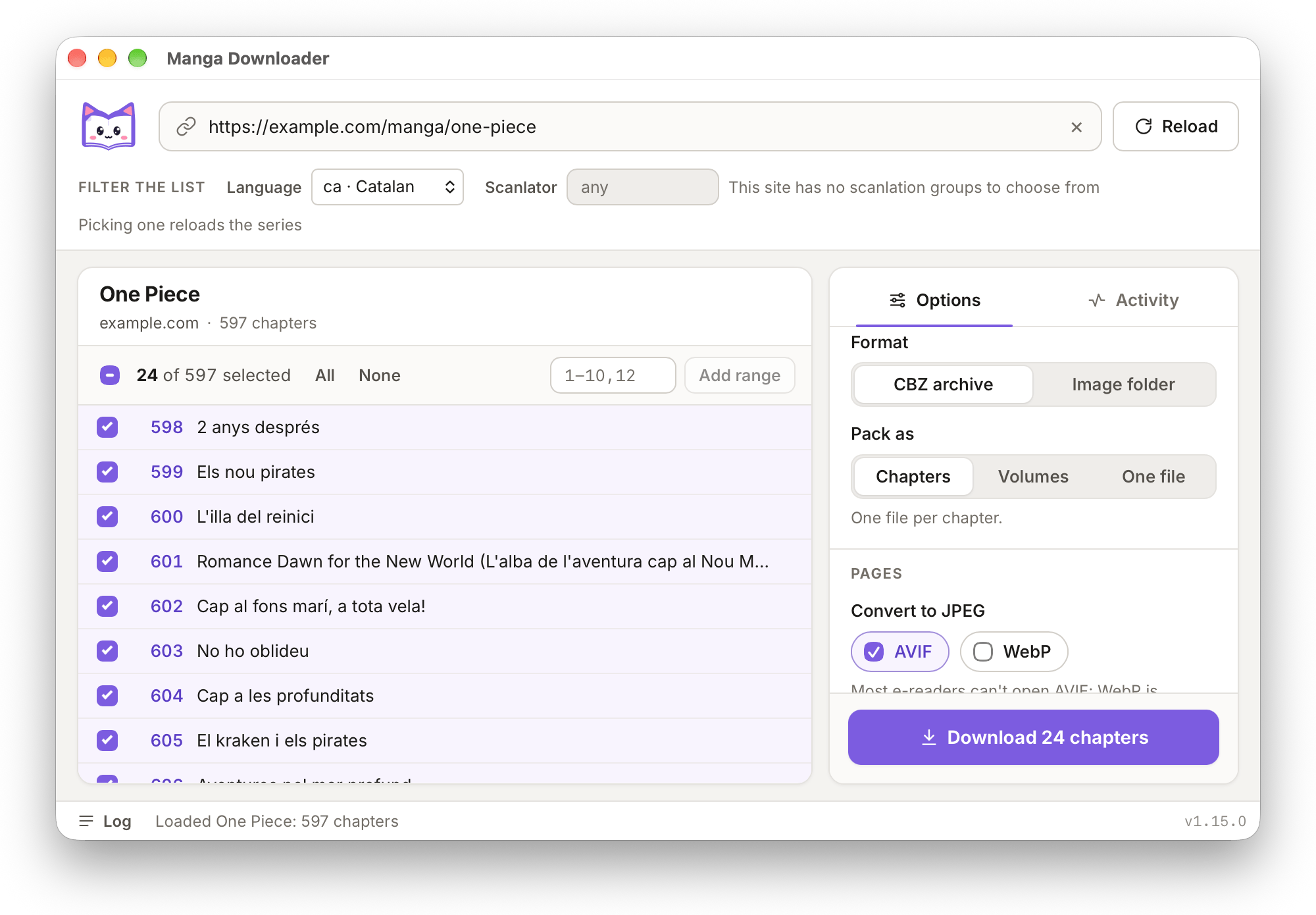
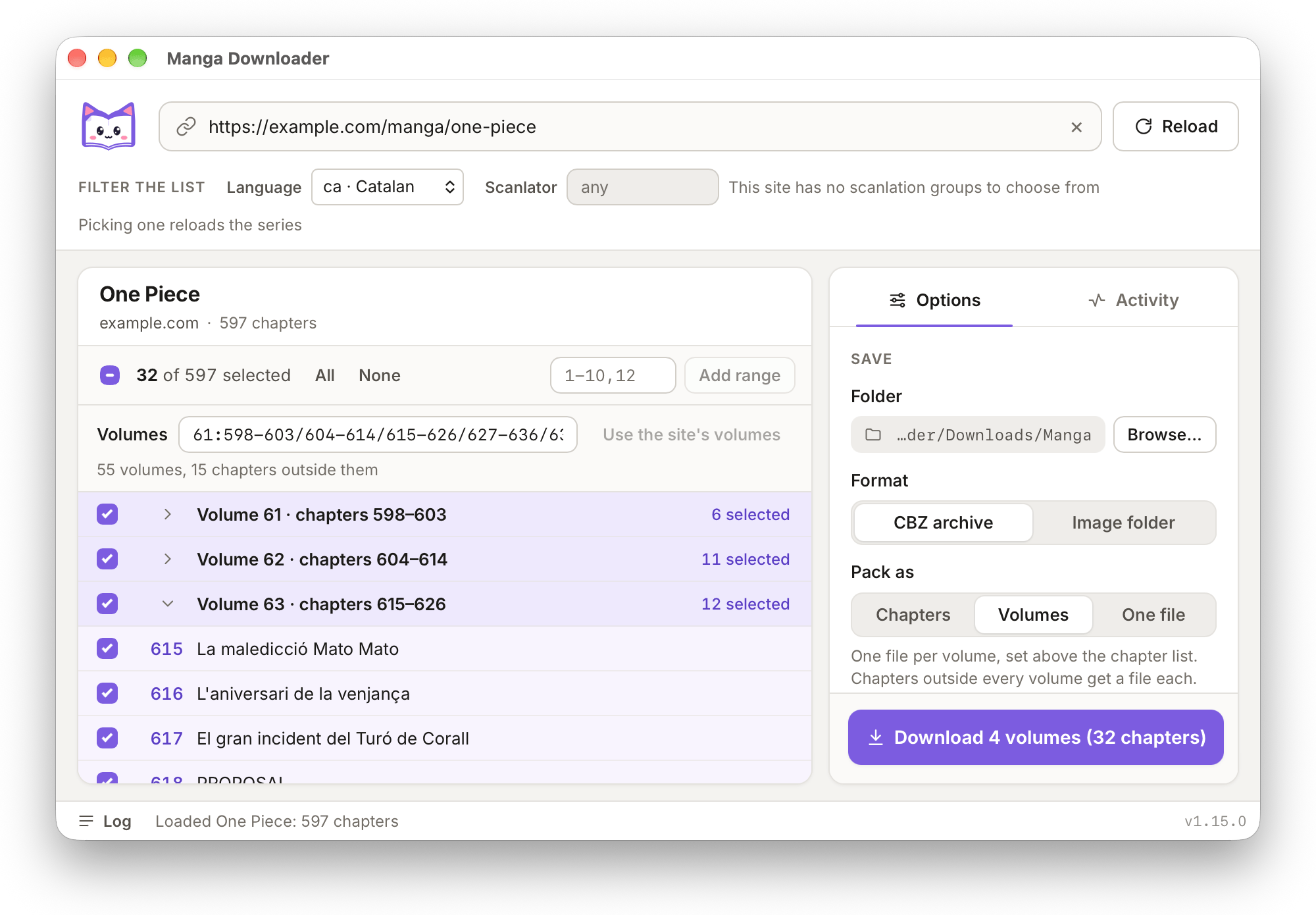
Set the options in the Options tab: where the files go, the format (CBZ archive or image folder), Pack as (a file per chapter, per volume, or one for everything), Convert to JPEG for AVIF and WebP pages, pages to skip, the file name template, and whether to Show the browser window. Packing by volume adds a Volumes box above the chapter list, filled with the site's volumes when it lists them, and groups the list by volume.
-
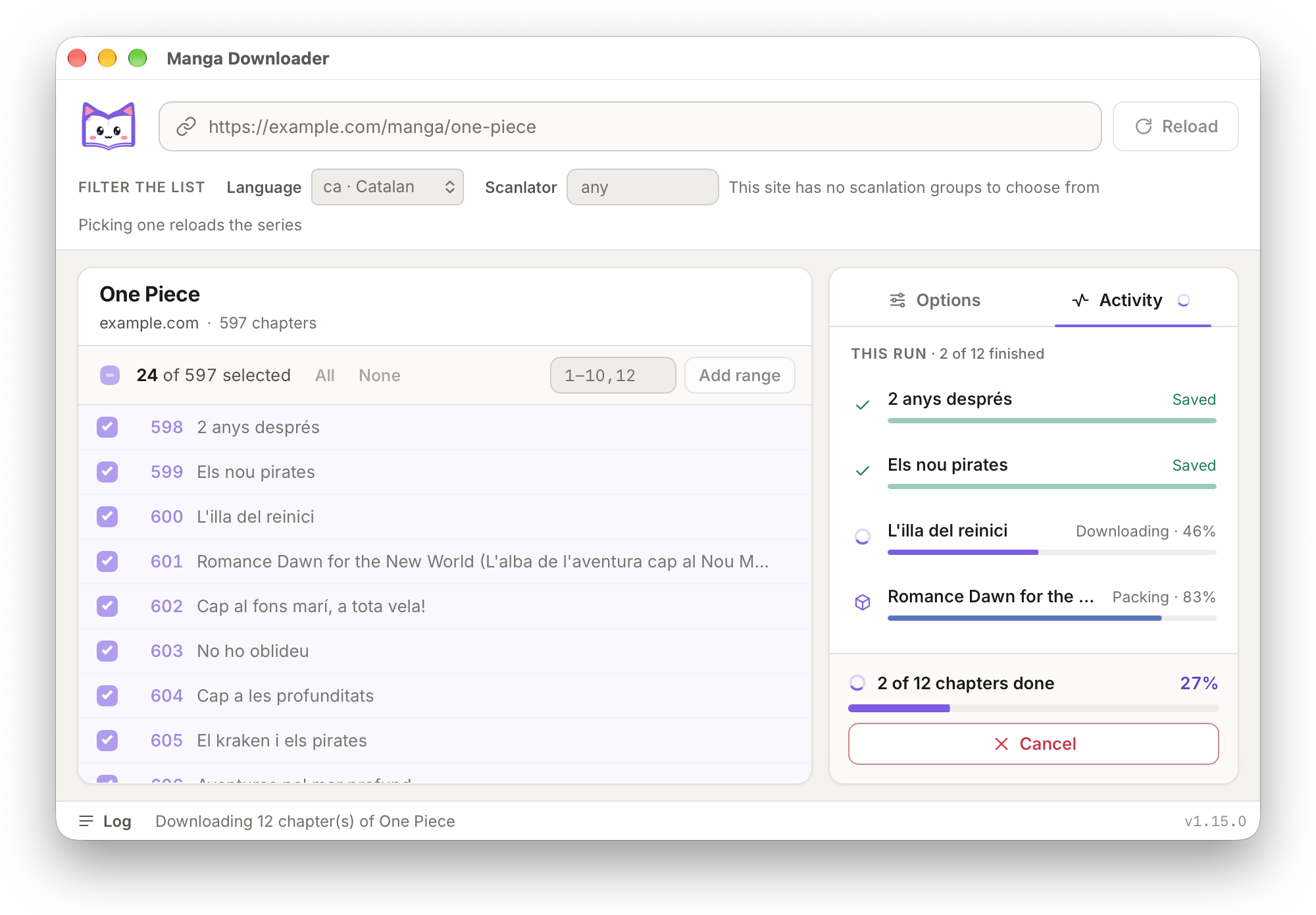
Press Download. The Activity tab shows each chapter as it's fetched and packed. Cancel lets the chapters already downloading finish, and starts no new ones. A log is one click away in the status bar.
-
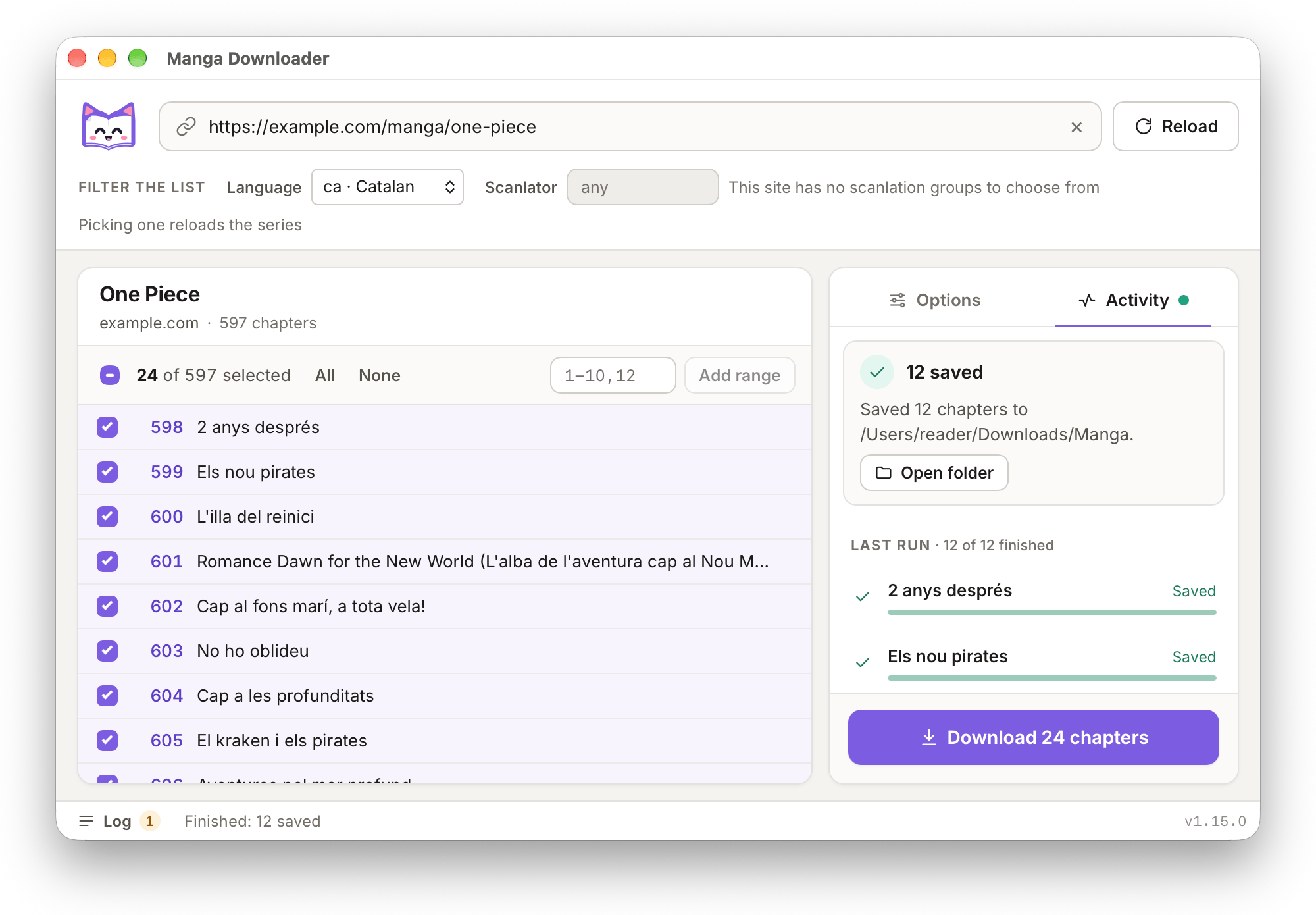
When it's done, the summary shows what was downloaded. Press Open folder to go straight to the files.
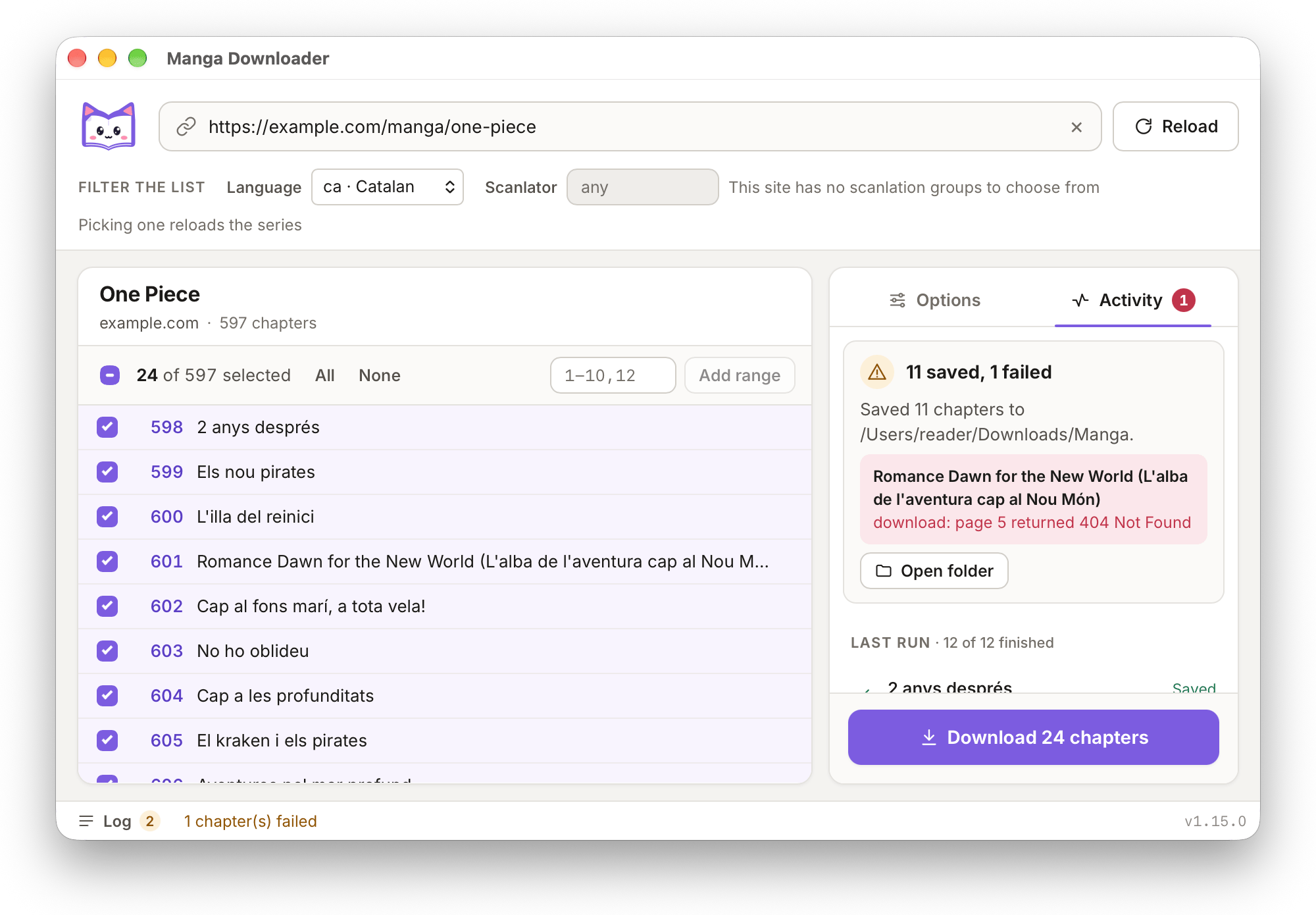
If a chapter fails, the summary names it and says why; the other chapters are still saved.


The app saves your options to gui.json in the manga-downloader folder of
your user config folder (the same place as the Manga Plus secret, see
below), so they're still there the next time you open
it. Files go to your Downloads folder (or your home folder, if there isn't one)
unless you choose another folder.
The app uses the command line's defaults for concurrency and retries. Sites whose image servers limit the request rate get lower limits automatically, in both the app and the command line.
manga-downloader [flags] [url] [chapters]urlis the manga's index page, the page that lists all its chapters. Don't use the URL of a single chapter.chaptersis a comma-separated list of numbers and ranges, such as1,3,5-10. If you leave it out, the tool asks whether to download every chapter. The answer defaults to "no".
Arguments aren't positional, so manga-downloader 1-50 [url] works too.


Some sites, such as MangaDex, list each chapter once per language. Use
--language to download only one of them:
manga-downloader --language es https://mangadex.org/title/a1c7c817-4e59-43b7-9365-09675a149a6f 1-10On sites that list several languages, --language all downloads every one of them.
Sites that host several scanlation groups' versions of the same chapter download
the group with the most chapters, and list the other groups. Use
--scanlator <name> to pick a group, or --scanlator all to download every
version. With all, the group name is added to each file name.
# all chapters in a single CBZ, one folder per chapter inside it
manga-downloader --bundle [url] 1-8

# plain image folders instead of CBZ files
manga-downloader --format raw [url] 1-8
--volumes packs one file per volume. auto uses the volumes the site files
chapters under (not every site lists them); otherwise give the chapters of each
volume, separated by slashes, in the chapter range syntax:
manga-downloader --volumes 1-7/8-16 [url] 1-20That writes Series Vol. 01.cbz and Series Vol. 02.cbz, with a folder per
chapter inside, and chapters 17 to 20, outside every volume, one file each.
The chapters argument still picks what's downloaded: a volume packs the
chapters of it you asked for. A group can give its volume number with N:,
and the groups after it count on from there:
manga-downloader --volumes 16:112-114/115-118 [url] 112-118That's volumes 16 and 17. An empty group also skips a number (1-7//20-30 has
no volume 2), and --volumes can't be combined with --bundle.

Most e-readers can't display AVIF, so a chapter with AVIF pages looks empty on the device even though the download succeeded. AVIF pages are converted to JPEG by default. WebP renders fine in phone apps but is unreliable on e-ink, so converting it is opt-in:
manga-downloader --convert-images avif,webp [url] 1-10   # strict e-ink setup
manga-downloader --convert-images none [url] 1-10        # keep pages untouched
JPEG, PNG and GIF pages are never re-encoded. If a page fails to convert, it's kept as it was and a warning is shown, so the rest of the chapter isn't lost.
Note
The AVIF decoder is embedded as WebAssembly, so you don't need to install any
system library. It's slower on the 32-bit builds (linux-386 and
windows-32bit-legacy), so use --convert-images none there if speed
matters.
The desktop app offers the same choice as two checkboxes, AVIF and WebP.
Scanlation groups often reserve a page or two of every chapter for their own
credits or ads. --skip-pages drops them, using the same range syntax as the
chapter argument, applied to each chapter's pages:
manga-downloader --skip-pages 2 [url] 1100-1110       # just the credits page
manga-downloader --skip-pages 2,5-7 [url] 1100-1110   # several at once
Pages count from 1, and negative positions count backwards from the end of
the chapter: -1 is its last page, -3--1 the last three. They're resolved
per chapter, so -1 means each chapter's own last page however long it is:
manga-downloader --skip-pages 2,-1 [url] 1100-1110 # one at each endThe pages are dropped before they're downloaded, so they cost no time or bandwidth, and a page that's broken on the site's end can't fail the chapter around it — which is the only way to download a chapter whose page 404s.
The archive is still numbered 000, 001, … in order, with no holes left by
the skipped pages. A position the chapter doesn't have is ignored.
Tip
Both --skip-pages -1 and --skip-pages=-1 work: the value right after the
flag is taken verbatim, dash and all. Use the = form if a shell or a
wrapper script trips on the leading dash.
Use --filename-template to change file names. It takes a
Go text/template string, and the default is:
{{.Series}} {{.Number}} - {{.Title}}{{if gt .Version 1}} v{{.Version}}{{end}}
{{.Version}} is a counter that's added when two files would have the same
name, and {{.Volume}} is the volume number (0 when the site doesn't say);
{{printf "%02d" .Volume}} pads it.
Volume files (--volumes) get their own default name while the template is
left as is:
{{.Series}} Vol. {{printf "%02d" .Volume}}{{if gt .Version 1}} v{{.Version}}{{end}}
A custom template names them too, with {{.Number}} being the volume's
chapters (1-7) and {{.Title}} Vol. 01.
| Variable | Description |
|---|---|
MANGAPLUS_SECRET |
Anonymous device secret to use for Manga Plus |
Manga Plus answers the complete chapter list only to an app client, which
authenticates with an anonymous device secret. manga-downloader registers one
on first use and caches it in manga-downloader/mangaplus-secret inside your
user config folder ($XDG_CONFIG_HOME or ~/.config on Linux,
~/Library/Application Support on macOS, %AppData% on Windows): no account is
ever needed. Secrets are 32 lowercase hexadecimal characters, and anything that
isn't one is treated as absent — so exporting a malformed MANGAPLUS_SECRET,
or deleting the cached file, makes the next run register a fresh device, as
does a cached secret the API stops accepting. Export a valid
MANGAPLUS_SECRET to reuse a secret registered elsewhere, such as the one of a
device with your Manga Plus subscription.
In Docker, the cached secret lives inside the container and is lost with
it, so every run registers a new device. To keep one, either pass it with
-e MANGAPLUS_SECRET=..., or mount your own config folder so the container
shares the secret of your local install (create the folder first, or Docker
creates it owned by root):
mkdir -p ~/.config/manga-downloader
docker run --rm -it -v "$PWD:/downloads" \
    -v ~/.config/manga-downloader:/home/manga/.config/manga-downloader \
    elboletaire/manga-downloader [url] [chapters]
Manga Plus also publishes one edition per language, and their chapter
lists differ: some list the whole series, others only a handful of chapters.
A URL points at one edition, and --language downloads another one instead
(--language en on a Spanish URL downloads the English edition).
| Flag | Short | Description | Default |
|---|---|---|---|
--output-dir |
-o |
Folder to write the downloaded files to | current folder |
--bundle |
-b |
Bundle all chapters into a single file | off |
--volumes |
One file per volume: auto, 1-7/8-16, 16:112-114 |
off | |
--format |
-f |
Output format: cbz or raw |
cbz |
--filename-template |
-t |
Template for the file names | see above |
--language |
-l |
Only download the specified language | site default |
--scanlator |
-s |
Only download the specified scanlation group (or all) |
most chapters |
--convert-images |
Formats to convert to JPEG: avif, webp or none |
avif |
|
--skip-pages |
Pages to exclude from every chapter (-1 is the last) |
none | |
--concurrency |
-c |
Number of chapters downloaded at once (max 5) | 5 |
--concurrency-pages |
-C |
Number of pages downloaded at once per chapter (max 10) | 10 |
--retry |
-r |
Retries per failed page (max 3, 0 disables retrying) |
1 |
--browser-visible |
Always show the browser window (rarely needed) | off | |
--version |
-v |
Show version information |
Run manga-downloader help to list them in your terminal.
Some sites cap the concurrency lower, because their image servers refuse requests that come too fast; a lower value still applies there. Pages refused for coming too fast (a 429) are retried after the wait the server asks for, up to a minute.
Show all 115 supported sites
- 3asq.online (Arabic, former 3asq.org)
- arenascan.com
- asmotoon.com (Asmodeus Scans) *
- asurascans.com (Asura Scans, former asuratoon.com)
- atsu.moe (Atsumaru)
- aurorascans.com (redirects to qimanga.com)
- azorafly.com (Azorafly, Arabic)
- bigsolo.org
- bluesolo.org (Blue Solo, French scantrad)
- chainsawman-chapter.online (Chainsaw Man)
- comix.to *
- danke.moe (Danke fürs Lesen)
- deathtollscans.net
- demonicscans.org (MangaDemon / Demonic Scans)
- dragontea.ink *
- drakecomic.net (Drake Scans, former drakecomic.org)
- dynasty-scans.com (Dynasty Reader)
- eldermanga.com
- elftoon.net (Elf Toon, former elftoon.com)
- en-hijala.com (Hijala Translations)
- en-thunderscans.com (Thunderscans)
- eskimangalar.com
- evascans.net (former evascans.org)
- fanfox.net (Manga Fox)
- flamecomics.xyz (Flame Comics, former Flame Scans)
- fmteam.fr
- furyosociety.com
- gdscans.com (GalaxyDegenScans)
- genzupdates.com (Genz Toon)
- guya.moe (Guya, Kaguya-sama)
- heavenly-delusion.com (Heavenly Delusion)
- hivetoons.org (HiveToons, VoidScans)
- inmanga.com
- jestful.net
- jojolandsmanga.com (The JoJoLands)
- kappabeast.com *
- kaynscans.com (Kayn Scans, former kaynscan.org)
- kingofshojo.com
- komikindo.ch
- komikstation.org (Indonesian)
- lagoonscans.com
- leercapitulo.co
- lhtranslation.net (LHTranslation)
- lilymanga.net (yuri, some NSFW)
- limonmanga.com
- luacomic.org (LuaScans)
- madarascans.net (former madarascans.org/.com)
- maid.my.id
- mangaball.com (former mangaball.net)
- mangabats.com (former mangabat.com)
- mangaberri.com
- mangadenizi.net
- mangadex.org (MangaDex)
- mangafire.to *
- mangahere.cc (MangaHere)
- mangahub.io *
- mangak.io (MangaK, former mangabuddy.com)
- mangakakalot.gg (MangaKakalot) *
- mangakatana.com
- mangalib.me (MangaLib)
- mangalivre.to (Manga Livre, former mangalivre.tv/mangalivre.net)
- manganato.gg (MangaNato)
- mangapark.cc (MangaPark)
- mangapill.com
- mangaplus.shueisha.co.jp (Manga Plus, Shueisha's official reader)
- mangaread.org
- mangasushi.org
- mangataro.org
- mangatown.com
- mangavault.lat (MangaVault)
- mangaworld.mx (MangaWorld, Italian)
- mangtto.com (Mangitto)
- manhuaplus.com
- manhuatop.org *
- manhuaus.com *
- manhwaonline.org
- mgeko.cc
- mistscans.com
- mkissa.to *
- natomanga.com (MangaNato, former manganato.com/manganelo.com) *
- projectsuki.com
- qimanga.com
- ravenscans.org
- rawkuma.net
- ritharscans.com
- rizzfables.com
- rokaricomics.com
- roliascan.com
- sacachispa.site
- sanascans.com (Sana Scans)
- scan-vf.net (ScanVF)
- setsuscans.com *
- silentquill.net (Armageddon Scanlation)
- stonescape.xyz
- sushiscan.net *
- taiyo.moe
- tcbonepiecechapters.com (TCB Scans, former tcbscans.com)
- team-shadowi.com
- templetoons.com (Temple Scan) *
- the-apothecary-diaries.com (The Apothecary Diaries)
- toongod.org *
- toonily.com *
- tortugaceviri.com (Tortuga Çeviri)
- tritinia.org (Tritinia Scans)
- trmanga.com
- twmanga.com (包子漫画, baozimh.com mirror)
- utoon.us (UToon, home of reset-scans' content)
- uzaymanga.com
- violetscans.org
- vortexscans.org
- webtoons.com (WEBTOON, free episodes only)
- weebcentral.com
- witchtoons.net (WitchToons, former witchscans.com)
- writerscans.com
- zonatmo.org (TuMangaOnline, former zonatmo.com)
Note
Sites marked with * need a Chromium-based browser (Google Chrome,
Chromium, Brave or Edge). They either render with JavaScript or sit behind a
Cloudflare challenge. Manga Downloader launches the browser itself and only
shows a window when a challenge needs solving, remembering the sites that
needed one until it exits. --browser-visible shows it for every site, which
is rarely needed.
Other sites built on the same platforms often work too, even when they aren't listed. If one doesn't, open an issue or send a pull request.
The newest chapter downloads empty or is missing
Many sites keep their latest chapters behind a paywall, and the page often looks normal. Try a slightly older chapter to confirm that the site works.
Old chapters are missing, or a warning says the range starts before the first chapter
Sites often delete old chapters. The tool can only download chapters that the site still lists.
A browser window pops up
This is expected for sites marked with *. The window opens when the site shows
a Cloudflare challenge or a captcha of its own, and the terminal (or the app)
tells you when it may need you. Checkboxes are clicked automatically, but some
challenges need you to solve them yourself; the download carries on once the
page loads. You rarely need to show the window from the start, but you can with
--browser-visible or Show the browser window in the app.

No browser found
Sites marked with * need Google Chrome, Chromium, Brave or Edge installed in
one of its usual places. To use another Chromium-based browser, set
MANGA_DOWNLOADER_BROWSER to the full path of its executable (or a command on your PATH), for example
MANGA_DOWNLOADER_BROWSER=/usr/bin/brave-browser. It works for the command line
and the app alike (for the app, set it in the environment that starts it).
Pages don't show up on my e-reader
The site probably serves WebP images. Download the chapters again with
--convert-images avif,webp, or tick WebP under Convert to JPEG in the app.
The command line tool needs Go 1.19 or newer:
make install   # download dependencies
make build     # test and build ./manga-downloader
The desktop app is a Wails app: a Go program showing a
React frontend in the system's webview. It needs Go 1.26 or newer (gui/go.mod),
Node 22, pnpm 10, and on Linux the WebKitGTK 4.1 and GTK 3 development headers
(libgtk-3-dev libwebkit2gtk-4.1-dev on Debian and Ubuntu):
make build/gui         # build ./manga-downloader-gui (frontend first)
make build/gui/windows # cross-build manga-downloader-gui.exe, no cgo needed