humla.team · Download for macOS · What it does · Privacy · How it works · Build




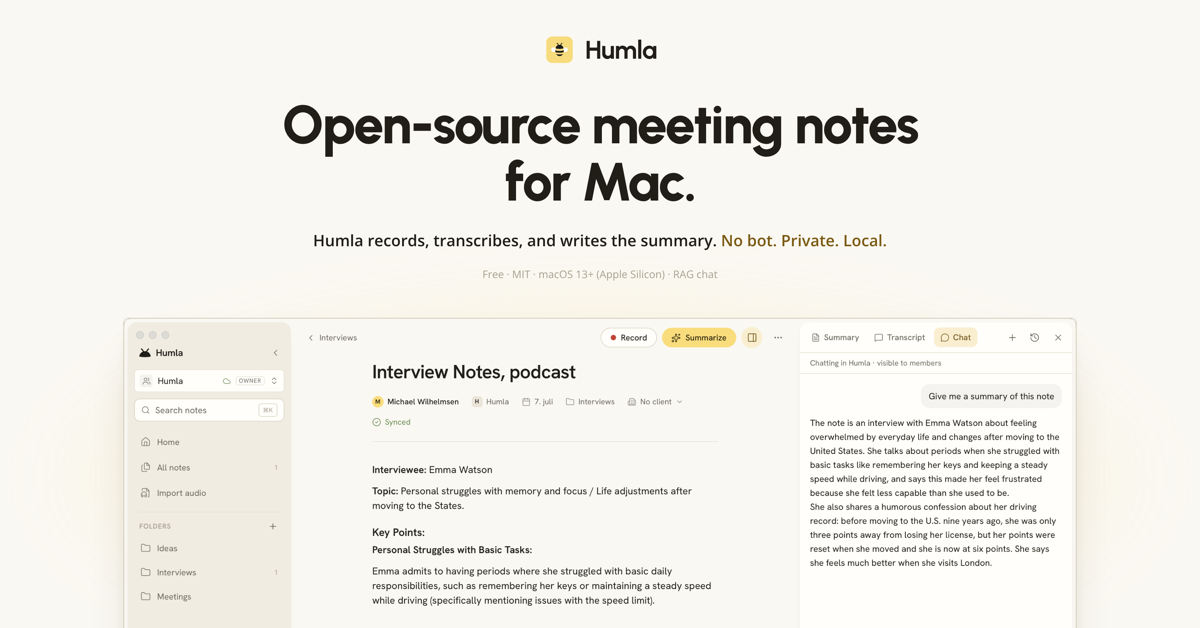
Humla is a meeting-notes app for macOS, inspired by Granola. You take freeform notes during your meeting; Humla records the audio, transcribes it, separates speakers, and produces a structured summary that combines your notes with what was actually said.
Built around one principle: your audio and your data stay on your machine unless you explicitly send them somewhere you choose — a transcription/LLM provider, or an optional sync server. Everything works locally — recording, transcription, speaker identification, even summarisation if you point it at a local LLM.
The name is Norwegian for bumblebee — small, hum, personal.
Note
Humla is an indie project, not a big SaaS. The app is local-first and free — no account, your notes never leave your Mac, bring your own API keys (or run fully local). If you want to sync across devices or share workspaces with a team, Humla Cloud is an optional paid add-on — and you can self-host the sync server instead. Either way, transcription and summaries still run through your own providers or on-device. See Team sync & self-hosting.
Humla captures your microphone and your computer's audio (Zoom, Meet, Slack huddles, anything) at the same time, kept as two separate streams. That means in a remote call your voice doesn't get mixed with the other person's, so the transcript stays clean and "you said vs. they said" is unambiguous. In an in-person meeting it records your room mic and tags the different voices it hears.
Pick the transcription engine that fits, and you can mix-and-match per language:
- Local Whisper — runs entirely on your Mac via Apple Silicon's GPU. Free after a one-time download. Multiple multilingual models plus a Norwegian-tuned model (NB Whisper Large from Nasjonalbiblioteket).
- OpenAI —
whisper-1,gpt-4o-transcribe,gpt-4o-mini-transcribe,gpt-4o-transcribe-diarize. - Deepgram — Nova-3 / Nova-2, native diarization, very strong on conversational English.
- Groq —
whisper-large-v3-turboat OpenAI-compatible endpoints — same Whisper quality, ~10× cheaper and faster than OpenAI's hosted Whisper.
Set a default provider in Settings, then add per-language overrides if you want — e.g. Norwegian → Local NB Whisper, English → Deepgram, fallback → OpenAI. Humla picks the right one automatically based on the recording's language.
When you stop the recording, Humla runs a speaker-identification pass on your Mac (no audio uploaded). It labels each turn with Speaker 1, Speaker 2, etc. — click any label to rename them ("Speaker 2" → "Wilma") and the change applies across the whole transcript.
Two engines, both free and on-device:
- Nemotron 3 — the default. NVIDIA's end-to-end model tells up to 8 speakers apart and counts them itself.
- Community-1 — pyannote clustering that uses the speaker count you set on a note, and takes over for meetings set above 8.
When you click Summarize, the model gets your typed notes and the transcript as two separate labelled inputs — [Notater] and [Transkripsjon], tagged user-written and auto so it knows which is which. Pick a preset — Meeting / 1:1 / Lecture / Interview / Brainstorm / Voice memo — or write your own.
The summary can run on:
- OpenAI — gpt-5.x reasoning models, gpt-4o, and others.
- Any OpenAI-compatible local server — Ollama, LM Studio, llama.cpp, vLLM. Sensitive meetings can stay 100% on-device.
Every note has a Chat tab that answers questions about your meetings. It isn't a canned prompt over one transcript: the assistant runs a real retrieval loop, searching and reading your notes to ground its answer, then cites the notes it used as chips you can click straight through to.
- Hybrid retrieval — full-text keyword search and semantic (embedding) search over your notes, so it finds things you didn't phrase exactly right.
- Choose how wide it looks — this note, this folder, or all your notes, per conversation.
- See its work — it shows what it searched and read, so an answer is auditable rather than a black box.
- Local or cloud — point it at Ollama for fully on-device chat, or OpenAI. Configured under Settings → Chat, separately from your transcription and summary providers.
Humla ships its own Model Context Protocol server, so the agent you already work in can search and read your meeting notes without you switching apps. Ask Claude Code "what did we agree with Acme about the renewal?" and it looks it up in your actual meetings.
Six read-only tools: search_notes, get_note, get_transcript, list_notes, list_folders, list_clients. Search spans your typed notes, the summary and the spoken transcript, and each result says which of the three it came from — so "what did they actually say" is a question you can ask. Results can be narrowed by folder, client, who spoke, language, and a date window (relative — the last 30 days — or absolute, 2026-06-01 to 2026-06-30).
- Off until you turn it on. Settings → General → Integrations, which then hands you a ready-to-paste config line for Claude Code and for Codex. Installing an update never quietly opens your meetings to anything.
- Read-only, and no audio. Nothing an agent does can change or delete a note, and no tool returns or references a recording — the same absolute rule the rest of the app follows.
- No key, no network, no server. It's a small local binary that reads your SQLite database directly, so search is keyword-based rather than embedding-based: nothing to pay for, nothing to send anywhere, and no Keychain prompt. There's no port and no token — the file permissions on your own machine are the authorization.
- Works whether or not Humla is open, and always reads the workspace you're currently in. The workspace is resolved on Humla's side, never passed in, so a client can't ask its way from Personal notes into a shared workspace or back.
- Custom vocabulary — names, jargon, acronyms biased into the transcription so they spell consistently.
- Per-note language — each note can override the global language for one-off bilingual calls.
- Folders + search — flat folder list with full-text search across titles, bodies, transcripts, and folder names.
- Click-to-edit transcript — coloured speaker pills inline; click anywhere to fix a transcription error.
- Auto-update — signed and notarised; existing installs detect new releases on launch.
- System-aware light/dark theme — clean, typographic UI in Hanken Grotesk with a warm gold accent.
The defaults are designed so nothing you write leaves your machine unless you tell it to.
- No backend by default. Your notes, transcripts and audio never leave this Mac unless you turn on sync. Outbound traffic is limited to the API endpoints you've configured, the update check against GitHub on launch, and — if you opt into sync — the server you connect to (Humla Cloud or your own).
- Anonymous counters, and you can switch them off. To find out whether people actually get the app working, Humla counts a few milestones: first launch, and whether onboarding was finished or skipped. Each is sent at most once per install and carries nothing else — no identifier, no account, no version, nothing about what you configured or recorded. They're stored as plain daily tallies, so there's nothing to tie back to you even in principle. The setup wizard says so on every step and lets you turn it off there; afterwards it lives in Settings → General → Send anonymous usage counters. If you installed Humla before this existed, you're not counted unless you switch it on yourself.
- Your notes and transcripts live in a single SQLite database at
~/Library/Application Support/no.humla.app/. - Recorded audio is not kept unless you ask for it.
- While recording, audio lives in a per-recording temp directory, deleted once transcription and the speaker pass are finished.
- By default nothing survives that — no playback file, no raw streams. The note keeps its transcript and word timings, so it still renders in full; you just don't get a player.
- Turn on Settings → Recording → Keep recorded audio to store meetings under
~/Library/Application Support/no.humla.app/recordings/<note_id>/: a mixedplayback.wavfor playing the meeting back with word-by-word highlight, plus the raw per-source mic and system WAVs, useful for re-running speaker detection. Roughly 1 MB per minute per channel. - The setting describes this Mac, not just its own recordings — with it off, a teammate's synced audio isn't downloaded here either.
- Turning it off is going-forward only. Delete stored audio…, in the same settings section, sweeps what's already on disk and keeps every transcript and timeline.
- The MCP server is off until you enable it, and read-only when you do. It's a local binary reading the same SQLite database — no port, no network, and no tool that can reach a recording. Turning it off in Settings takes effect on the next tool call, not at the client's next restart.
- API keys are stored in the macOS Keychain (one entry per provider — OpenAI, Deepgram, Groq), not in plaintext on disk.
- Model downloads are one-time fetches from HuggingFace; the files live in
~/Library/Application Support/no.humla.app/models/and~/Library/Application Support/FluidAudio/Models/.
If you use only Local Whisper + the on-device speaker labels + a local LLM for summaries, no audio or text ever leaves your Mac.
Humla is local-first and works fully offline — your local/Personal notes never need a server. If you want to sync across your devices or share workspaces with teammates, point the app at a sync server (Settings → Account → Connect). The server only stores and relays your notes — transcription and summaries still run through your own providers or on-device, and it never sees your API keys.
The sync engine speaks to a PocketBase backend (a single Go binary: SQLite + auth + file storage + REST API). Two ways to get one:
The hosted option: sign up in-app, nothing to set up. Team workspaces are a paid subscription — $5 per user / month, via Stripe — with a 14-day free trial; your local/Personal notes are always free. That's about a third of what Granola or Otter charge per seat. The convenient path — you run no infrastructure.
Run your own PocketBase server — on a VPS or on your own machine — and point Humla at it in Settings → Account → Connect. Self-hosted servers have no paywall: every team feature is free. Billing only activates when the server has STRIPE_SECRET_KEY set, so a self-hosted server never asks anyone to pay.
Humla Cloud is developed together with the app rather than bolted on afterwards, and that's deliberate: it's what makes every local feature behave the same way inside a shared workspace as it does on your own machine. The sync engine itself lives in this repo — src-tauri/crates/cloud-sync is the client side, open source like the rest of the app. What isn't distributed is the server half that Humla Cloud runs against it, because the two move in lockstep and I change them together.
So the honest advice for self-hosting is to fork this repo and build your cloud layer against that snapshot. A fork pins a version of the client you control, so your server can't drift out from under it when the app moves on — and you maintain the pair. cloud-sync tells you exactly what the server has to answer: the collections it pushes and pulls, the fields on each record, soft deletes, and last-write-wins on client_updated_at.
The stack Humla Cloud uses, if you want somewhere to start:
- PocketBase — one Go binary: SQLite, auth, file storage, REST API, admin UI. The whole server is a
pb_datadirectory, which is also your backup story. - Caddy — reverse proxy for automatic TLS. Skippable on a trusted LAN; plain
http://works, so a NAS needs no domain or certificate. - Object storage (S3 / Cloudflare R2) — audio blobs, configured in PocketBase's Settings → Files, so recordings don't fill the local disk.
- Litestream — continuous SQLite replication to the same bucket.
- SMTP — transactional email for signup verification and invites. Without it, sync works fine but accounts stay unverified.
- A small Hono service on Node for workspace chat, using the Vercel AI SDK for the agentic SSE loop and its own SQLite vector index (
better-sqlite3+sqlite-vec). Chat retrieval runs server-side, which doesn't fit inside PocketBase's JS hooks — hence the separate process.
- Download the latest signed + notarised DMG from the Releases page.
- Drag Humla into Applications and open it. macOS Gatekeeper accepts the build directly because it's notarised.
- Grant permissions on first record: Microphone, and (for capturing system audio) Screen Recording. You'll need to relaunch after granting Screen Recording.
- Pick your providers in Settings → Transcription:
- Local Whisper alone is great if you don't want any cloud calls — click Download on a model (~500 MB–1.1 GB depending on which one).
- OR add an API key for OpenAI / Deepgram / Groq — keys live inline under the provider you pick, and go straight to the macOS Keychain.
- Optional: download a speaker-diarization model under Settings → Transcription → Speaker diarization (~30 MB).
- Optional: point Humla at a local LLM server (Ollama / LM Studio / llama.cpp) under Settings → Summary for fully on-device summaries, and under Settings → Chat for fully on-device chat.
That's it. Click Record to start, Stop when you're done, Summarize when you want notes.
Humla auto-updates: existing installs detect new releases on launch and prompt to install.
┌─────────────────────────────────────────────────────────────┐
│ React + Vite frontend                                       │
│  Tiptap editor · Zustand store · Tailwind v4                │
└──────────────────────┬──────────────────────────────────────┘
                       │ Tauri IPC
┌──────────────────────▼──────────────────────────────────────┐
│ Rust backend                                                │
│                                                             │
│  ┌─────────────┐  ┌─────────────────┐  ┌─────────────────┐  │
│  │SQLite       │  │ audio-capture   │  │ speaker-diarize │  │
│  │ notes /     │  │ sidecar (Swift) │  │ sidecar (Swift) │  │
│  │ folders /   │  │ AVAudioEngine + │  │ FluidAudio      │  │
│  │ settings    │  │ ScreenCaptureKit│  │ (CoreML / ANE)  │  │
│  └─────────────┘  └─────────────────┘  └─────────────────┘  │
│                                                             │
│  ┌─────────────────────────────────┐  ┌─────────────────┐   │
│  │ HTTPS clients                   │  │ Local Whisper   │   │
│  │ OpenAI / Deepgram / Groq / HF   │  │ whisper-rs/Metal│   │
│  └─────────────────────────────────┘  └─────────────────┘   │
└─────────────────────────────────────────────────────────────┘
In plain language: when you hit Record, a small native Swift helper captures your microphone and your system audio as two separate streams, splits each one into short clips at natural speech pauses, and feeds the clips to whichever transcription engine you picked. Your typed notes are saved continuously alongside the transcript. When you stop, Humla runs speaker identification offline (still no audio leaves your Mac) and labels the transcript. Summarize sends your notes + the transcript to your chosen LLM and produces a structured Markdown summary. Notes are also indexed for search — full-text plus embeddings — which is what the Chat tab draws on when it goes looking for an answer. The MCP server reads that same database — the keyword half of the index, so it needs no API key — which is why an outside agent searches the notes you already have rather than a copy of them.
For a deep dive into the architecture — module map, data flow, gotchas — see CLAUDE.md.
Requires macOS 13+, Apple Silicon recommended.
Prerequisites:
- Rust toolchain (
curl --proto '=https' --tlsv1.2 -sSf https://sh.rustup.rs | sh) - Node 20+ and
pnpm - Xcode command line tools (
xcode-select --install) cmake(forwhisper.cpp)
git clone https://github.com/michaelwilhelmsen/humla.git
cd humla
pnpm install
./scripts/build-sidecar.sh    # builds the audio-capture Swift sidecar
./scripts/build-diarize.sh    # builds the speaker-diarize Swift sidecar
./scripts/build-mcp.sh        # builds the humla-mcp server binary
pnpm tauri dev
All three are bundled binaries the app declares up front, so the build fails if any is missing — run them once after cloning, and again only when you change their source.
To build a launchable .app bundle locally:
pnpm tauri build --debug
open src-tauri/target/debug/bundle/macos/Humla.app
For the full release pipeline (signed + notarised DMG + auto-updater payload + GitHub release), see scripts/release.sh and the credentials it reads from .env.notarise. Requires an Apple Developer ID, notary key, and a Tauri updater Ed25519 keypair.
humla/
├── src/                        # React frontend (Tiptap + Zustand)
├── src-tauri/                  # Rust backend (Tauri 2)
│   ├── src/
│   │   ├── commands.rs         # recording lifecycle, chunk transcription, diarize-on-stop
│   │   ├── commands/           # command groups: notes, folders, settings, chat, clients,
│   │   │                       #   cloud, export, models, summary, api_keys, …
│   │   ├── recording.rs        # session state, per-source trails
│   │   ├── stt/                # STT adapter abstraction (OpenAI/Local/Deepgram/Groq)
│   │   ├── chat/               # agentic note-chat: tool loop, retrieval, providers
│   │   ├── mcp/                # the MCP server's six read-only tools over your notes
│   │   ├── bin/humla-mcp.rs    # that server as a second binary, shipped in the bundle
│   │   ├── diarize.rs          # speaker-diarize sidecar wrapper
│   │   ├── local_whisper.rs    # whisper-rs + Metal model registry
│   │   └── openai.rs           # OpenAI HTTP client + summary endpoint
│   └── binaries/               # signed sidecar binaries
├── audio-capture/              # Swift sidecar: mic + screen audio
└── speaker-diarize/            # Swift sidecar: offline diarization
- Frontend — React 19 + Vite 6 + Tailwind v4 + Tiptap + Zustand + react-markdown + lucide-react
- App shell — Tauri 2, Rust 1.85, reqwest (rustls-tls), rusqlite (bundled), tokio
- Local Whisper —
whisper-rs0.16 (bindswhisper.cpp) with themetalfeature;large-v3-turbo-q5default plus alternative multilingual models and NB Whisper Large for Norwegian - Speaker diarization — FluidAudio Swift package; NVIDIA Nemotron 3 Diarization, or pyannote community-1 + VBx clustering with PLDA; CoreML on Apple Neural Engine
- Note chat — agentic tool loop over three retrieval tools; hybrid search combining SQLite FTS5 keyword ranking with semantic embedding similarity; OpenAI or Ollama as the chat provider
- MCP server —
rmcp(the official Rust MCP SDK) over stdio, built as a second binary from the same crate and signed into the app bundle; opens the notes database directly, so it runs with or without the app - Audio capture — Swift,
AVAudioEngine,ScreenCaptureKit; sandbox-detached viasetsidso TCC permissions bind to the sidecar binary
Humla stands on the shoulders of:
- whisper.cpp by Georgi Gerganov — the local transcription engine
- FluidAudio — the offline diarization pipeline (Nemotron 3 Diarization and pyannote community-1 + VBx + PLDA, ported to CoreML)
- Nemotron 3 Diarization by NVIDIA — the default speaker-diarization model (OpenMDW-1.1)
- NB Whisper Large by Nasjonalbiblioteket — Norwegian-tuned Whisper model
- Tauri — the native app shell
- Tiptap — the rich-text editor
- Granola — the user-experience inspiration
MIT.