
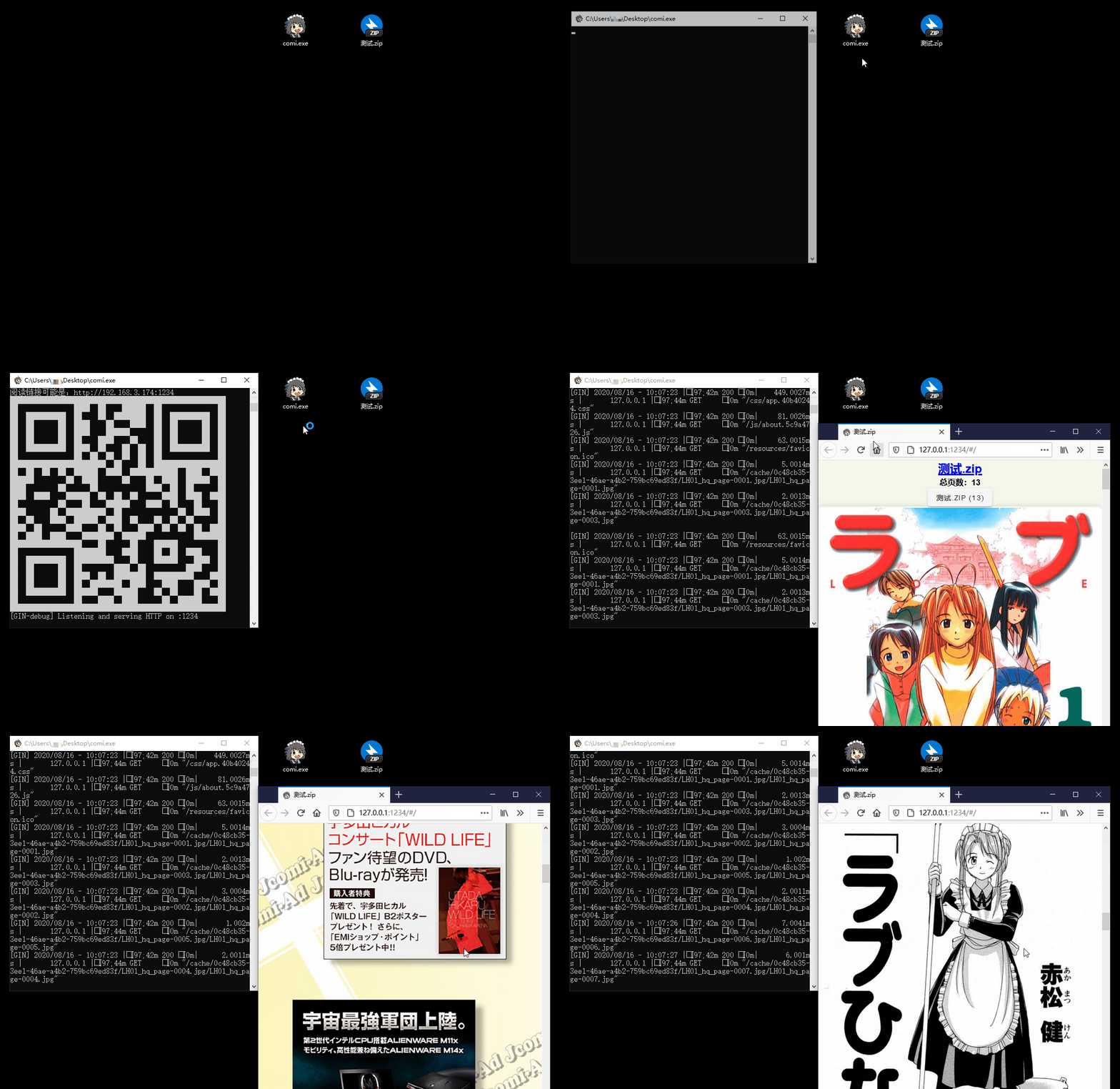
- 📚 Multiple Format Support: Supports image folders and compressed files like
.rar,.zip,.tar,.cbz,.cbr,.epub - 📱 Easy Access: QR code scanning for mobile/tablet devices, drag-and-drop support for Windows
- 📴 Offline Mode / PWA App: Read ZIP/CBZ/RAR/CBR directly in your browser without uploading files
- 🐧 Cross-Platform: Compatibility with Windows, Linux, and macOS
- 📖 Diverse Reading Modes: Offers scroll, and page-turning modes
- ⚙️ Flexible Configuration: Command-line operation with
config.tomllibrary settings - 🖼️ Modern Image Formats: In addition to
jpgandpng, it also supports next-gen formats likeheicandavif - ✂️ Smart Optimization: Automatic image cropping and compression for bandwidth saving
- 🔄 Sync Reading: Synchronized page-turning across different devices
- 🔌 Plugin System: Built-in plugins like auto page-turn and clock, with custom plugin support
- 🎬 Media Playback: Built-in audio and video player
- 📥 Flexible Use: Supports remote Comigo libraries, batch image-folder downloads, and EPUB conversion
- 📜 Reading History: Automatic reading history tracking for easy continuation
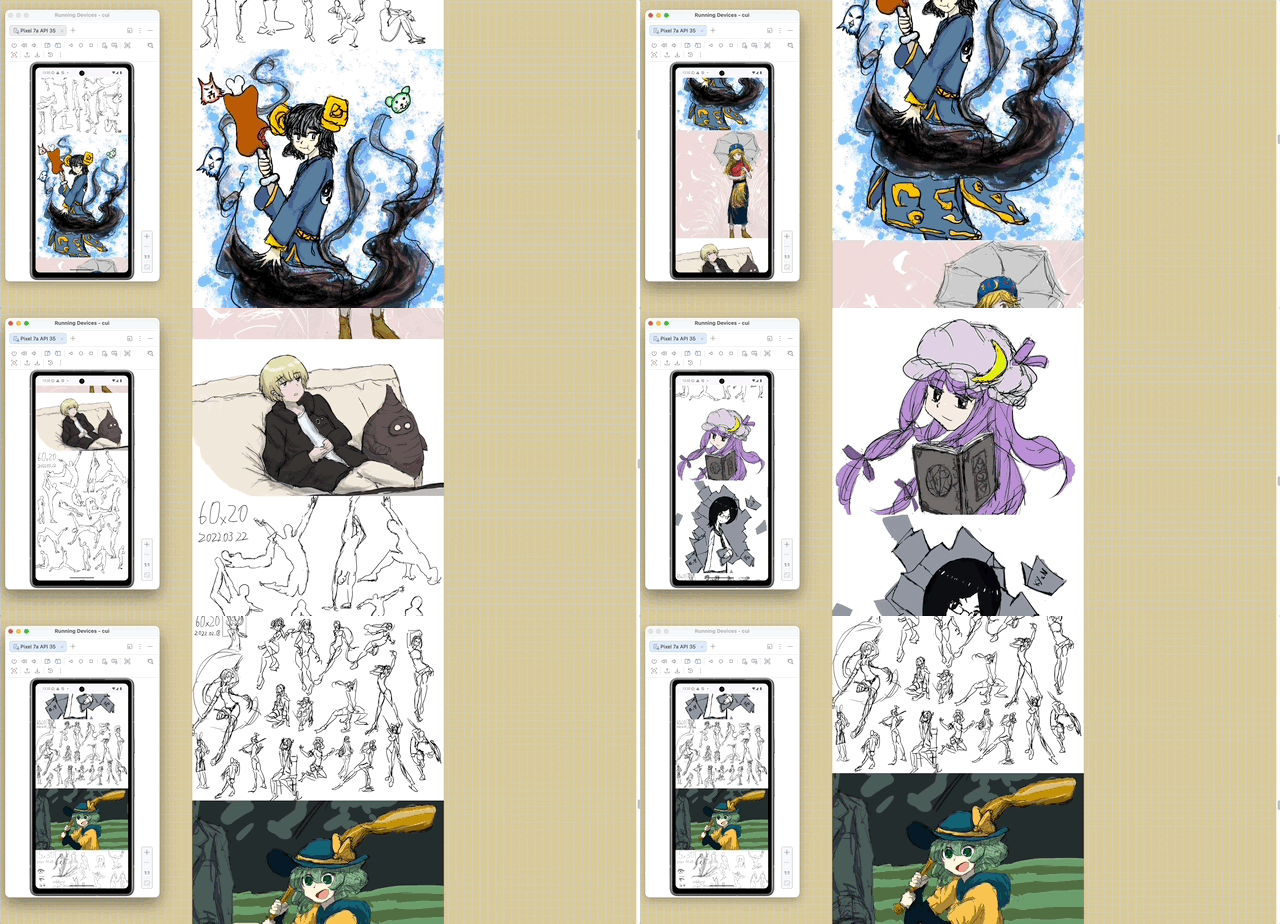
PC/Mobile Sync:
| Version | System | Download |
|---|---|---|
| Tray | Windows 64-bit | comigo-tray_latest_Windows_x86_64.zip |
| Tray | Windows ARM64 | comigo-tray_latest_Windows_arm64.zip |
| Tray | macOS (Intel/Apple Silicon) | comigo-tray_latest_MacOS_universal.dmg |
| Tray | Linux 64-bit | comigo-tray_latest_Linux_x86_64.tar.gz |
| Tray | Linux ARM64 | comigo-tray_latest_Linux_arm64.tar.gz |
| Desktop | Windows 64-bit | comigo-desktop_latest_Windows_x86_64.zip |
| Desktop | Windows ARM64 | comigo-desktop_latest_Windows_arm64.zip |
| Desktop | macOS (Intel/Apple Silicon) | comigo-desktop_latest_MacOS_universal.dmg |
| Desktop | Linux 64-bit | comigo-desktop_latest_Linux_x86_64.tar.gz |
| Desktop | Linux ARM64 | comigo-desktop_latest_Linux_arm64.tar.gz |
💡 Which GUI package should I choose? Choose Tray if you want ComiGo to keep running in the background and manage it from the system tray. The Tray version starts the local Web service and opens the reader in your browser; the tray menu can open the browser, copy the reading URL, open config/library folders, switch languages, check for updates, and toggle Tailscale remote access. On Windows, it can also register folder context menus, file associations, and desktop shortcuts.
Choose Desktop if you prefer a regular app window. It displays the ComiGo reader in a standalone window and adds desktop-only actions such as selecting folders with the system picker and moving local source files to the system trash after confirmation. The current Desktop build does not include the tray menu or built-in Tailscale remote access.
macOS tip: If macOS says the app is damaged and should be moved to Trash, the downloaded file is usually not actually broken. Run this after moving the app to Applications:
xattr -dr com.apple.quarantine /Applications/comigo-desktop.app
bash <(curl -s https://raw.githubusercontent.com/yumenaka/comigo/master/get.sh)Recommended for users in mainland China:
bash <(curl -s https://comigo.xyz/get.sh) --cn| System | Download |
|---|---|
| Windows 64-bit | comi_latest_Windows_x86_64.zip |
| Windows ARM64 | comi_latest_Windows_arm64.zip |
| Windows 32-bit | comi_latest_Windows_i386.zip |
| macOS Intel | comi_latest_MacOS_x86_64.tar.gz |
| macOS Apple Silicon | comi_latest_MacOS_arm64.tar.gz |
| Linux 64-bit | comi_latest_Linux_x86_64.tar.gz |
| Linux ARM64 | comi_latest_Linux_arm64.tar.gz |
| Linux ARM32 | comi_latest_Linux_armv7.tar.gz |
| Linux 32-bit | comi_latest_Linux_i386.tar.gz |
| Debian/Ubuntu 64-bit | comi_latest_amd64.deb |
| Debian/Ubuntu ARM64 | comi_latest_arm64.deb |
💡 Note: CLI version suitable for server deployment and advanced users. Manual PATH configuration required after download.
Download the latest version from the Releases page and add the executable to your system's PATH environment variable.
Comigo supports Omarchy through the comigo-omarchy plugin, which controls local or remote services from the status bar.
omarchy plugin add https://github.com/yumenaka/comigo-omarchy --enable# Pull and run the latest image
docker run -d \
--name comigo \
-p 1234:1234 \
-v /path/to/your/books:/data \
yumenaka/comigo:latestVisit http://localhost:1234 to access your library.
- Download the
docker-compose.ymlfile - Edit the configuration as needed
- Start the service:
docker-compose up -dlinux/amd64- Standard x86_64 serverslinux/arm64- ARM64 servers (Raspberry Pi 4/5)linux/arm/v7- ARMv7 devices (Raspberry Pi 2-4)
For more details, see the complete Docker documentation.
comi [flags] [file_or_dir ...]Run in the background and stop:
# Start in the background and scan this library
comi start /path/to/manga
comi status

# Stop local CLI processes (choose one or all if multiple match)
comi stop
comi go is equivalent to comi start, and comi ls / comi ps to comi status, with identical arguments and behavior.
See the deployment manual for detailed usage, environment variables and multiple instances.
| Option | Short | Default | Description |
|---|---|---|---|
--config |
-c |
- | Specify config file path |
--port |
-p |
1234 | Service port |
--host |
- | - | Custom hostname/domain |
--local |
- | false | Local access only |
--max-depth |
-m |
5 | Max scan depth |
--open-browser |
-o |
false | Open browser on start |
--enable-upload |
- | true | Enable file upload |
--read-only |
- | false | Read-only mode |
--username |
- | - | Login username |
--password |
- | - | Login password |
--debug |
- | false | Debug mode |
# Open current directory
comi .

# Specify port and path
comi -p 8080 /path/to/manga
The CLI uses config.toml, searching the user’s .config/comigo/ directory, the executable directory, then the working directory, and loading the first match. Use --config to select a file explicitly. Desktop and Tray use desktop.toml and tray.toml, respectively.
If you have any suggestions or encounter issues, feel free to:
Thanks to the following open-source projects and their contributors:
- mholt
- spf13
- disintegration
- Baozisoftware
- And many more contributors
This software is released under the MIT license.